

Section “Reference”
All documentation sectionsShort explanations of the words you meet in the web app, the apps and this documentation. The link next to a term leads to the article that covers it in detail. The search at the top of the page finds terms too.
Account and access
- Account
- A company in the system: its equipment, data and employees. Employees sign in with their own usernames to the shared account and see only its equipment. Users and roles
- Role
- What an employee can do in the account. The owner adds employees and pays, an operator sets up equipment, a viewer only watches. Users and roles
- Trial period
- 14 days of the Business plan after signing up on the website: no invoices are issued, and the plan’s limits apply. Plan and payment
- Access suspension
- The web app and the apps are closed until the invoice is paid. Meanwhile the equipment keeps sending data, and the history is not interrupted. Plan and payment
- Plan limit
- How many cameras and devices you can add to the account. It limits only adding new ones; what is already added is never switched off. Plans, limits and retention
- SLA
- The share of time a camera was available, against its target (99.5% by default). It is counted from the checks the server runs every 30 seconds. Analytics
- Quiet hours
- The time when alerts do not arrive. If a fault has not cleared by morning, the message arrives when the alert window opens. Alerts
- Mini App
- The web app’s panel inside Telegram. It opens from the chat with the bot; nothing to install. A panel in Telegram
Cameras and video
- RTSP
- The protocol a camera uses to deliver video. A stream address looks like this: rtsp://username:password@address:554/path. How to connect a camera
- Public IP address
- A permanent internet address at which a device can be reached from outside. Behind a mobile modem there usually is none, and then the camera needs a trunk. How to connect a camera
- Port forwarding
- A setting of the site’s router that sends requests on an external port to a camera in the internal network. How to connect a camera
- Main stream and substream
- A camera usually provides two streams: one in full resolution and a lighter one. For the video wall and a weak connection the substream is better. How to connect a camera
- Keyframe
- A frame that can be shown without the previous ones; video starts from it. The keyframe interval is set in the camera; 1 or 2 seconds works best. Video does not play or freezes
- H.264 and H.265
- Video compression formats. All the apps play H.264, while browsers do not play H.265 everywhere, so choose H.264 in the camera. Video does not play or freezes
- Video wall
- All of the account’s cameras as tiles in the Video monitoring section, two to six in a row. Video monitoring
- Test card
- A picture saying “No Signal” in place of the frame when there is no video. It is hard to mistake for a camera image. Video monitoring
- LIVE
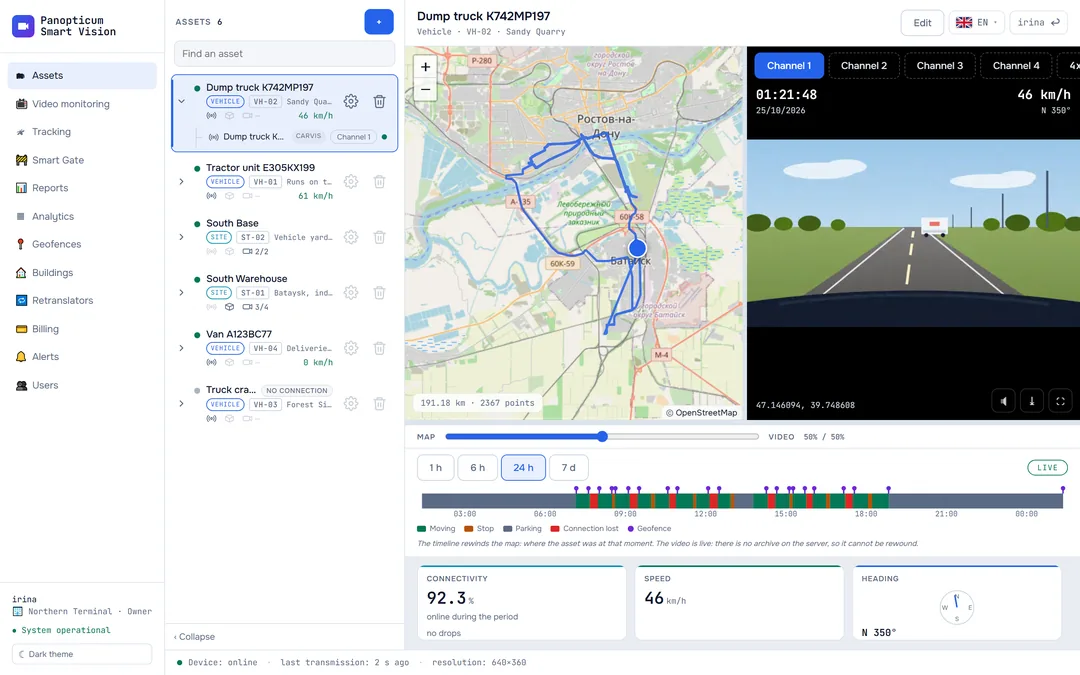
- The live video mark on a camera tile. In Assets, the button that brings the map back to the present moment has the same name. Assets
- PTZ
- A pan-tilt-zoom camera: pan, tilt and zoom. The PTZ control appears only on cameras that have confirmed a pan-tilt mechanism. PTZ cameras
- ONVIF
- A standard for controlling IP cameras. The trunk uses it to learn a camera’s stream addresses, and the PTZ control uses it to drive the motor. PTZ cameras
- RTMP
- The protocol used to send video from a site to the server: this is how the trunk works, and the cameras that can push their stream themselves. How to connect a camera
- Trunk
- A box on site (an HDMI stick or a mini PC) running Panopticum OS. It finds the cameras in the site’s network and sends their video to the server itself; it is needed where there is no public IP. The trunk and Panopticum OS
- Panopticum OS
- The trunk’s operating system, based on Ubuntu. It is installed from an image or with one command on an existing Debian or Ubuntu machine, and it updates over the network. The trunk and Panopticum OS
Vehicles and devices
- Device
- A tracker or DVR that sends coordinates and telemetry to the server by itself. How to connect a device
- DVR
- A Carvis DVR in a vehicle: it sends coordinates and video from up to four channels. DVR video
- DVR channel
- A DVR input for one of the vehicle’s cameras, for example the road or the cab. Channel video is switched on by request and only while someone is watching. DVR video
- Device protocol
- The language a device speaks to the server: JT808 for Carvis, NTCB and FLEX for Navtelecom, Wialon IPS for trackers with that protocol. Each has its own port. How to connect a device
- IMEI
- The device modem’s 15-digit number. Navtelecom and Wialon IPS devices are identified by it. How to connect a device
- Terminal number
- The 12 digits that identify a Carvis DVR. How to connect a device
- Asset
- A vehicle, site or point that a device, a trunk and cameras are linked to. In the Assets section it is shown as a whole: map, video and timeline. How to add an asset
- Online
- The device has sent something in the last 3 minutes. Statuses and colours
- Telemetry
- Everything a device reports apart from coordinates: speed, ignition, voltage, sensors and alarms. Tracking
- GPS fix
- The device has worked out its position from satellites. Points without a fix are not written to the history. Tracking
- Black box
- The device’s memory where points pile up while there is no connection. When the connection returns, the device uploads them and they take their place in the track at their own time. Tracking
- Catching up
- The badge of a device that is uploading its stored history: meanwhile its position on the map is from the past. Statuses and colours
- Connectivity history
- The Connectivity panel in Tracking: when a device was online over a day, a week or a month. Connectivity history
- Timeline
- The strip under the map in Assets: driving, stops, parking and connection drops over a period. Clicking it moves the vehicle on the map to that moment. Assets
- Trip, stop, parking
- Trip: the vehicle moves faster than 3 km/h. Stop: it stands with the ignition on. Parking: it stands with the ignition off. Segments shorter than 2 minutes do not count. Reports
- Engine hours
- Engine running time: by ignition on, or by the device’s engine hours sensor. Report tables and charts
- Trace
- A table of the track points themselves: time, speed, coordinates, satellites. Report tables and charts
- Report template
- The set of tables, charts and thresholds a report is built from. Reports
- Geofence
- An area on the map (a polygon, a corridor along a road or a circle) that sends alerts about entry, exit, speed and parking in it. Geofences
- Hysteresis
- A 50-metre margin at the geofence boundary: an exit counts only when the vehicle has gone 50 metres beyond the boundary. Without it, a vehicle at the boundary would send messages endlessly. Geofences
- WIM station
- An automatic weigh-in-motion station: a gantry over the road that weighs vehicles as they drive. WIM stations
Smart Gate
- Checkpoint
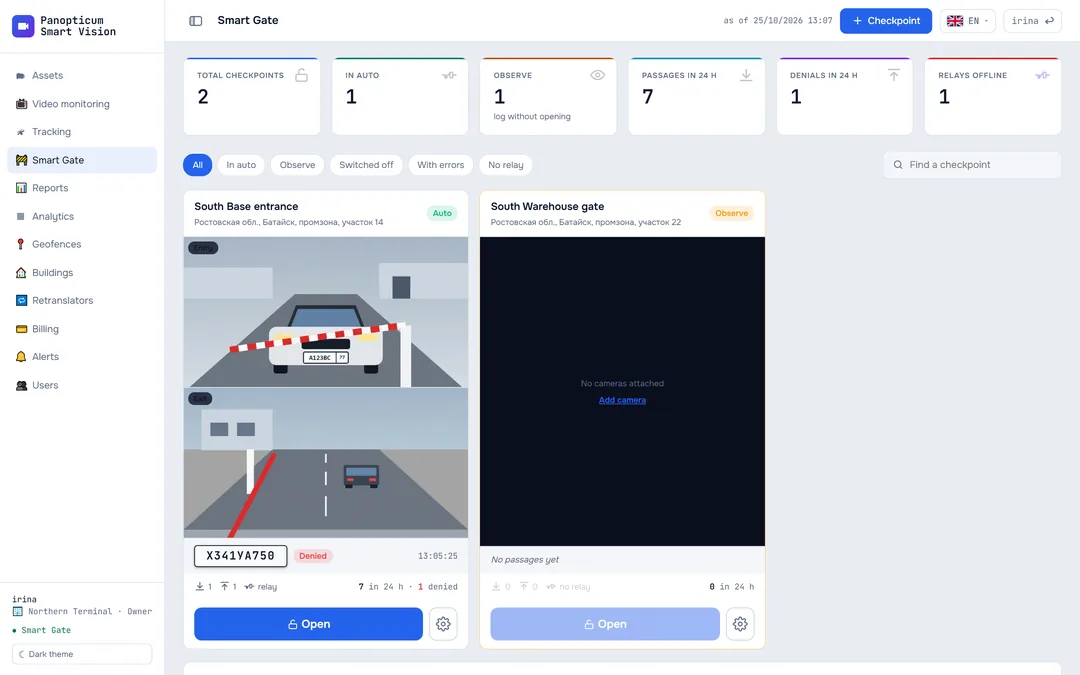
- A barrier or gate with plate recognition cameras and a relay. Smart Gate
- Pass
- A vehicle’s number plate on a checkpoint’s allow or block list, with conditions: dates, days, hours and direction. Each checkpoint has its own list. Passes
- Allow list and block list
- The allow list lets a vehicle in; the block list keeps it out, even if the plate is on the allow list too. Passes
- Observe
- The checkpoint mode in which plates go into the log marked “would have opened”, and the barrier is not touched. Smart Gate
- Auto
- The checkpoint mode in which it opens for vehicles on the allow list by itself. Smart Gate
- Free exit
- A checkpoint setting: open for any vehicle on exit, without a list. Smart Gate
- Confidence threshold
- How reliably a plate must be read for the checkpoint to decide on it; 0.6 means 60 per cent. Smart Gate
- Debounce
- For how many seconds the same plate in the same direction is not processed again: a vehicle that lingers in the frame does not open the barrier over and over. Smart Gate
- Relay
- A device that closes a contact on the server’s command and opens the barrier or gate. Smart Gate
- ANPR camera
- A camera that recognises plates itself (ANPR) and sends them to the checkpoint at a secret address. Smart Gate
Sending data out
- Retranslation
- Sending device points to an external monitoring system, for example a regional one or your shipping customer’s system. Retranslation
- EGTS
- The Russian protocol for sending navigation data. Rostransnadzor and many regional systems accept it. Retranslation
- OID
- The object number in EGTS. It is usually assigned by the receiving side. Retranslation
- Wialon IPS
- A text protocol for trackers. Panopticum receives it from devices and can also send data to another system with it. How to connect a device
- Sent mark
- Up to which point the receiver has confirmed delivery. It moves only on confirmation, so points are not lost when the connection drops. Retranslation
See also
Found a mistake, or didn’t find an answer? Write to us on Telegram or send us a request, and we will reply and fix the article.