

Section “Getting started”
All documentation sectionsEveryone in the company who works with the system signs in with their own username to one shared account. Equipment and data belong to the account, and the role decides who can change what.
Three roles
| Role | Sees | Can |
|---|---|---|
| Owner | Everything in the account | Everything an operator can, plus: add employees and change their roles, pay invoices and edit the company details |
| Operator | Everything in the account | Add and set up cameras, devices, assets, geofences, buildings, checkpoints, passes, retranslators and alerts |
| Viewer | Everything in the account | Watch video, the map, logs and reports. Cannot change anything |
The role is checked by the server, not only by what the page shows: a viewer cannot save changes even if they see a form.
The Users section
Only the account owner sees this section. It lists the employees with their role, status and last sign-in time, and below the list is the “Add a user” form.

- An employee and their role
- Invite an employee
How to add an employee
- Open Users and enter a username in the “Add a user” block.
- Set a password of at least 8 characters and choose a role: “Operator” or “Viewer”.
- Press “Create” and give the employee their username and password. They can sign in straight away, in the browser and in any of the apps.
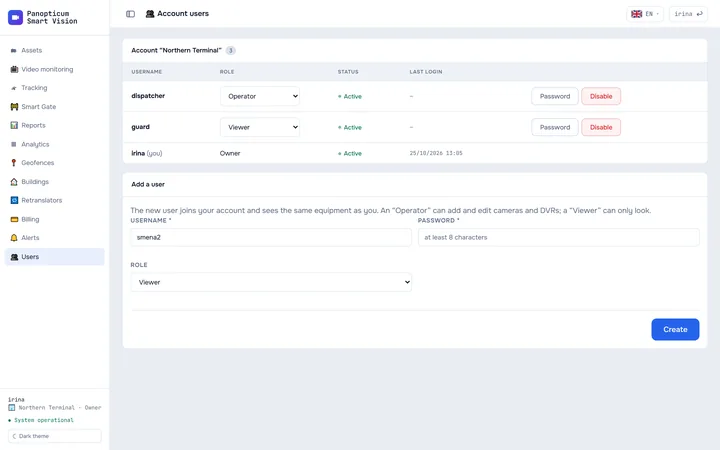
1In Users, make up a username for the employee.
2And a password of at least 8 characters: give it to the employee.
3Choose a role: Operator or Viewer.
4Press “Create”.
A second owner cannot be added: changing the owner changes who holds the account, and that is done through us.
Change a role or password, disable
- A role is changed by choosing it in the employee’s row and applies at once.
- The “Password” button sets a new password if the employee has forgotten theirs.
- “Disable” closes sign-in without deleting the username: that makes it easy to restore access if the person comes back. An “Enable” button then appears in its place.
The phones of employees who signed in to the Android app are listed in the app itself, on its phones screen; the owner of a phone can disconnect it there.
If something went wrong
- There is no Users section. You have the operator or viewer role; employees are added by the account owner.
- An employee cannot sign in. Check that they are not disabled, and set a new password with the “Password” button.
- An employee cannot see a camera or a vehicle. The equipment was added in another account; the system administrator moves it.
See also
Found a mistake, or didn’t find an answer? Write to us on Telegram or send us a request, and we will reply and fix the article.