

Section “Connecting equipment”
All documentation sectionsA camera is connected in one of two ways. If it can be reached from the internet (a public IP address or a forwarded port), it is enough to enter its RTSP address in the web app. If the camera sits behind a mobile modem or someone else’s router, you need a trunk: a box on the site’s network that sends the video to the server by itself.
A camera reachable from the internet
Cameras are added in the Analytics section, with the “+ Camera” button in the header.

- Camera name
- RTSP address with username and password
- Availability target, 99.5% by default
| Field | What to enter |
|---|---|
| Name and Location | What to call the camera on the video wall, for example “Gate 2” and “South Warehouse” |
| RTSP URL | The camera’s stream address, together with the username and password |
| Health URL | An optional health check address, if the camera or DVR provides one |
| Weather | A city or coordinates: the weather at that place appears over the video |
| SLA target | Which availability counts as normal, 99.5% by default |
rtsp://username:password@203.0.113.10:554/Streaming/Channels/101
A few seconds later the camera appears on the video wall, and the first availability check runs within 30 seconds.
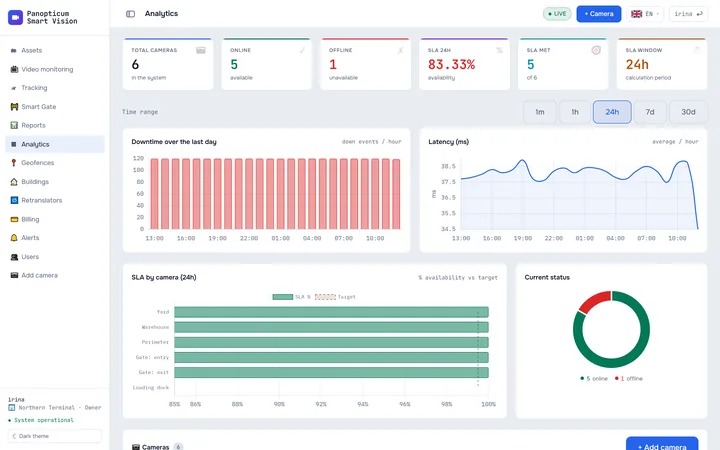
1Open Analytics and press “+ Camera”.
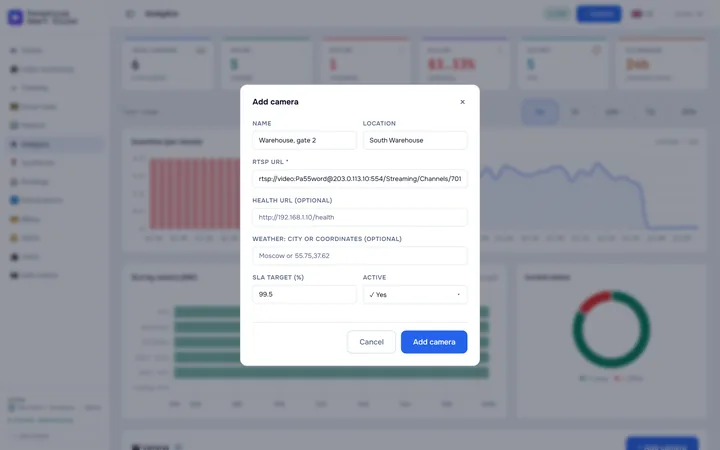
2Enter the camera’s name and location.
3Paste the RTSP address together with the camera’s username and password.
4Press “Add camera”.
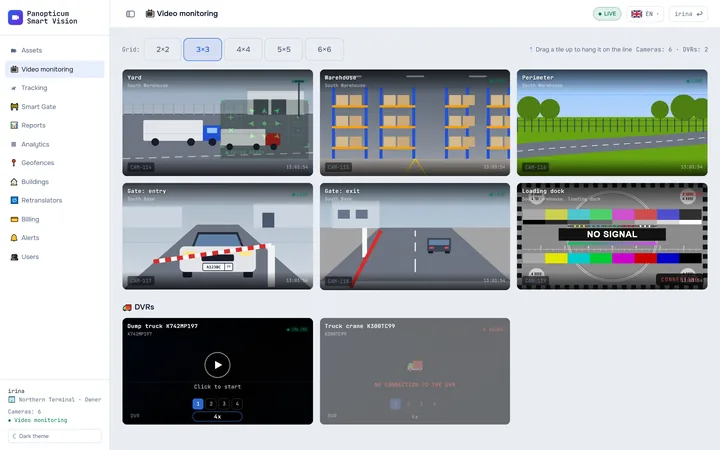
5A few seconds later the camera appears on the video wall.
Where to get the RTSP address
The stream address depends on the manufacturer and is given in the camera’s manual or in its web interface. A camera usually has two streams: the main one in full resolution and a smaller substream. For the video wall and a weak connection the substream is better.
For video to appear quickly and not freeze, set the keyframe interval in the camera to 1 or 2 seconds. The player starts from a keyframe, and with a 6-second interval the first picture waits just as long.
A camera without a public IP
Behind a 4G modem, CGNAT or someone else’s router, an incoming connection to the camera is impossible. Such sites get a trunk: it finds the cameras on the site’s network, asks them for their stream addresses over ONVIF itself and sends the video to the server. Details in The trunk and Panopticum OS.
Some cameras can push video to the server over RTMP by themselves. Such a connection is set up by our support: write to us with the camera model.
Where the camera appears
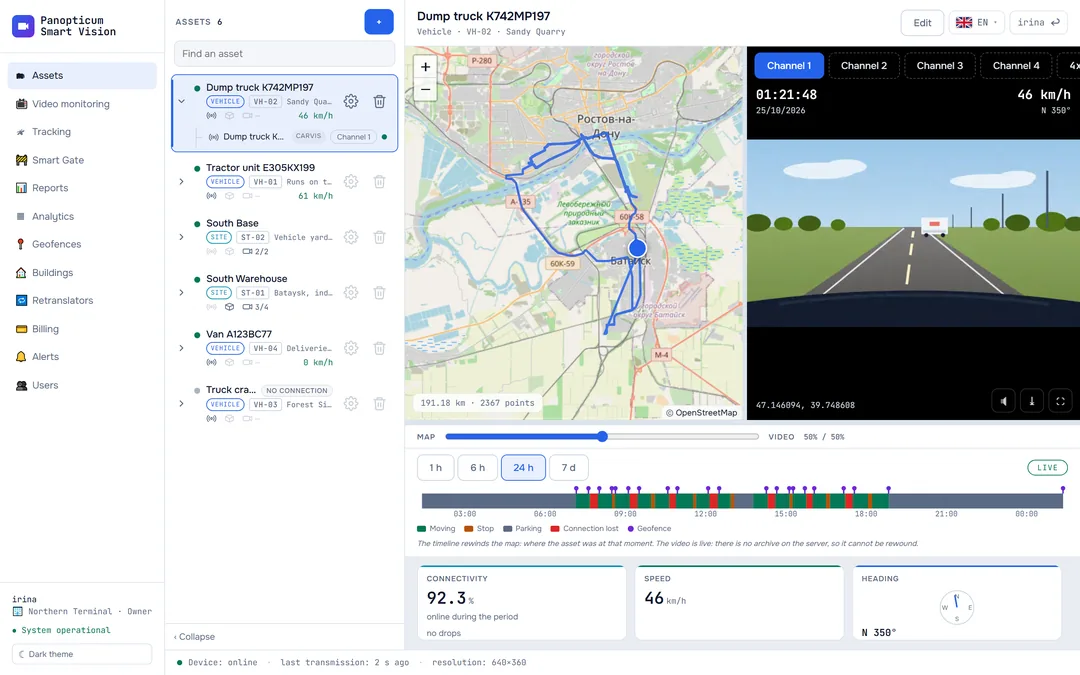
- On the Video monitoring wall and in full-screen view: Video monitoring.
- In the card of the asset it is linked to: How to add an asset.
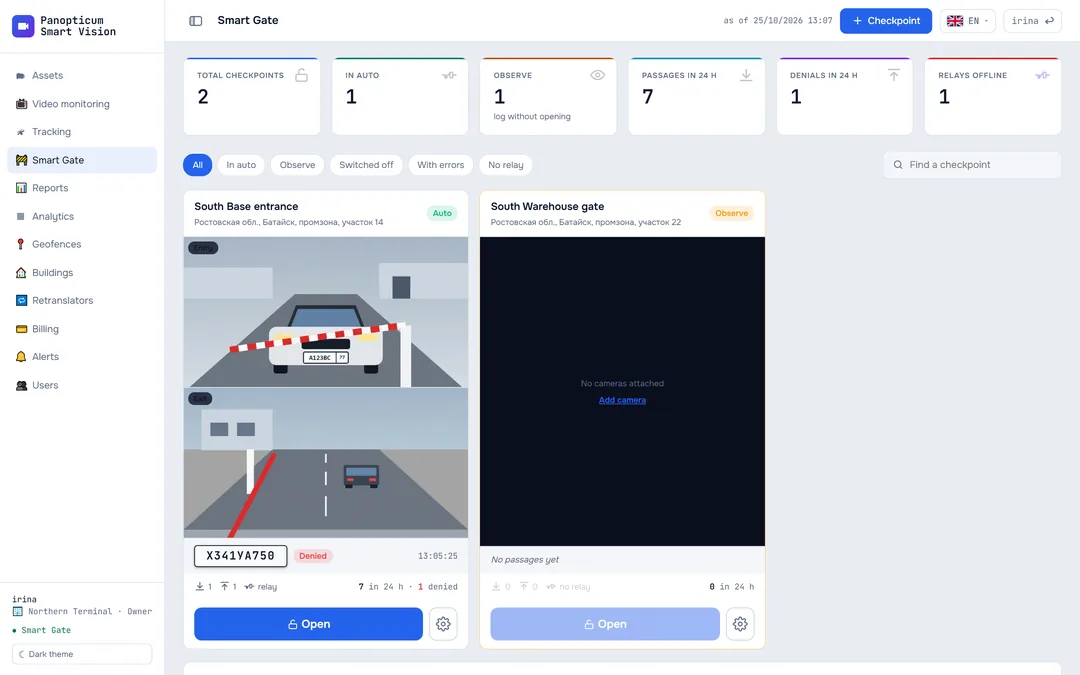
- On a building’s floor plan and at a checkpoint.
- In Analytics: availability for the day, downtime and latency.
PTZ cameras
If a camera can pan and tilt and has confirmed this over ONVIF, a PTZ control appears over the video: eight directions, zoom and stop. A camera without a motor has no PTZ control. Details in PTZ cameras.
If something went wrong
- The camera is red in Analytics. The server could not reach the address and port: check that the port is forwarded and the address is external. Open the same RTSP address in VLC on a computer outside the site’s network.
- VLC opens it only inside the site’s network. There is no access from outside; you need a trunk.
- The camera is green, but there is a test card instead of video. The port is open, but the stream does not come through: check the username, password and stream path.
- Jerky picture on a weak connection. Use the substream, lower the bitrate and set the keyframe interval to 1 or 2 seconds.
- Step-by-step troubleshooting in Video does not play or freezes.
See also
Found a mistake, or didn’t find an answer? Write to us on Telegram or send us a request, and we will reply and fix the article.