

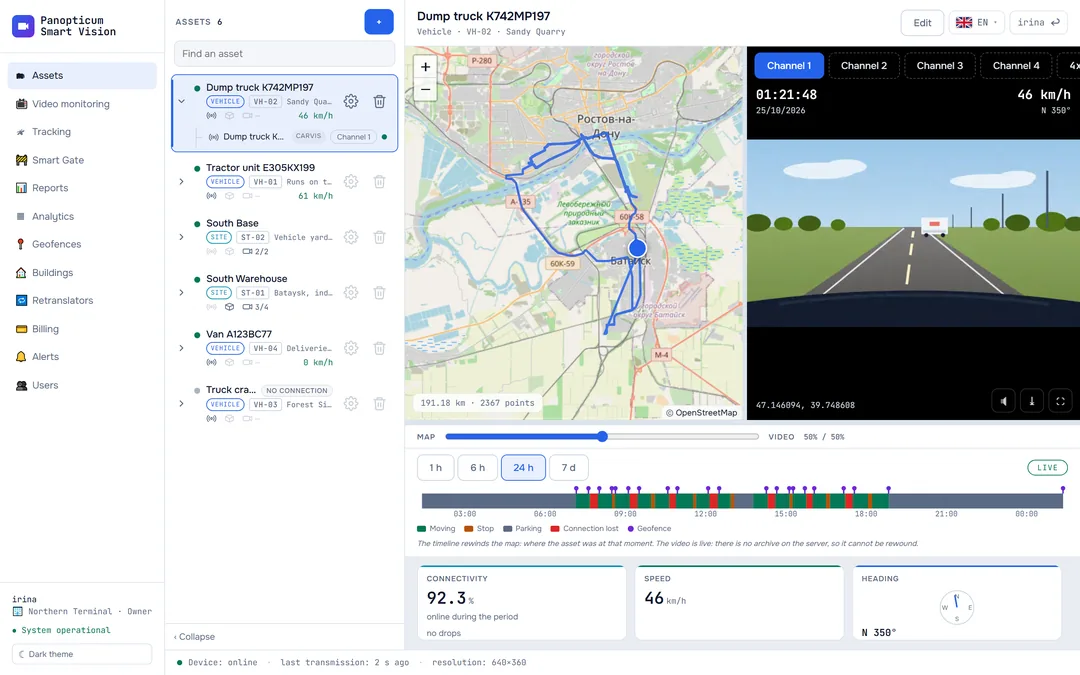
Section “Connecting equipment”
All documentation sectionsA tracking device (a tracker or a DVR) connects to our server by itself: its settings hold the server address and the port of its protocol. Then the device is added in the web app, and the vehicle appears on the map.
Which devices are supported
| Devices | Protocol | Port | Identifier |
|---|---|---|---|
| Carvis DVRs: coordinates and video from up to four channels | JT808, 2013 and 2019 editions | 6000 | 12-digit terminal number |
| Navtelecom devices: coordinates and telemetry (voltage, sensors, CAN, fuel) | NTCB and FLEX | 6200 | IMEI, 15 digits |
| Any tracker with the Wialon IPS protocol | Wialon IPS 1.1 and 2.0 | 6300 | IMEI, 15 digits |
The server address is the same for all protocols: panopticum-smart-vision.ru. If your company runs its own server, its administrator will give you the address.
Setting up the device
In the device settings (with the manufacturer’s program or by SMS command), enter the server address and your protocol’s port, and check that the right protocol is selected. How to do this on a particular model is described in the device’s manual.
Tracking: pressing “+ Device”
- “+ Device” in Tracking adds a device: protocol, IMEI, name and number plate.
- Wrong port. The device itself is pointed at the Navtelecom port: the server does not understand its language there, the device knocks again and again, no points arrive, and the web app shows it with “no connection”.
- Port changed to 6300. The server understood the device, accepted its login and acknowledged it.
- Device online. The vehicle is on the map, and its points go into the history.
The device in the web app
In Tracking, press “+ Device” at the top right, choose the protocol and enter the identifier, name and number plate. The order does not matter: you can add a device before it is set up, or after. Until the device comes online it is in the list without a green dot; as soon as the server accepts its login, the vehicle appears on the map.

- Device protocol
- Identifier: IMEI or terminal number
- Vehicle number plate
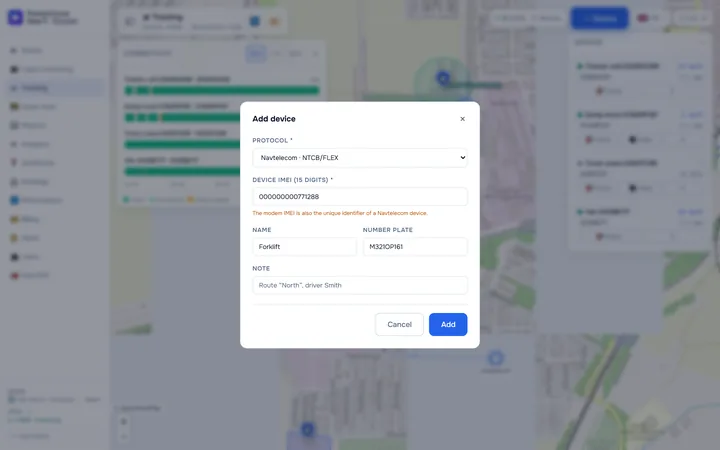
1In Tracking, press “+ Device” at the top right and choose the device’s protocol.
2Enter the identifier: the 15-digit IMEI for Navtelecom and Wialon IPS, or the 12-digit terminal number for Carvis.
3Give the device a name; people will look for it by that name in lists.
4Enter the vehicle’s number plate.
5Press “Add”. As soon as the device comes online, the vehicle appears on the map.
Devices are added by the account owner and operators. One identifier cannot be added twice, even under different protocols. How many devices you can add depends on your plan: Plan and payment.
The black box
Without a connection, the device stores points and uploads them later. These points take their real time from the device’s clock, so a trip does not collapse into one line at the moment of delivery. While the upload is running, the vehicle in the asset list has a “catching up” badge.
Points without a GPS fix are not written to the history: in that case the device repeats its last known position, and on the map it would look like parking. How the history is filled in after the fact is covered in Tracking.
Video from a DVR
On Carvis DVRs, video is turned on with a button in the device panel or in the asset card: the vehicle’s channel is busy only while someone is watching. Details in DVR video.
If the device does not appear
- Check the address, port and protocol in the device settings: that is the cause in most cases.
- Check the SIM card: the balance and mobile data.
- Look at the device’s connectivity history: Connectivity history.
- Write to us: the server can see whether the device is knocking, on which port and in which language.
- Step-by-step troubleshooting in Device is offline.
See also
Found a mistake, or didn’t find an answer? Write to us on Telegram or send us a request, and we will reply and fix the article.