

Section “Connecting equipment”
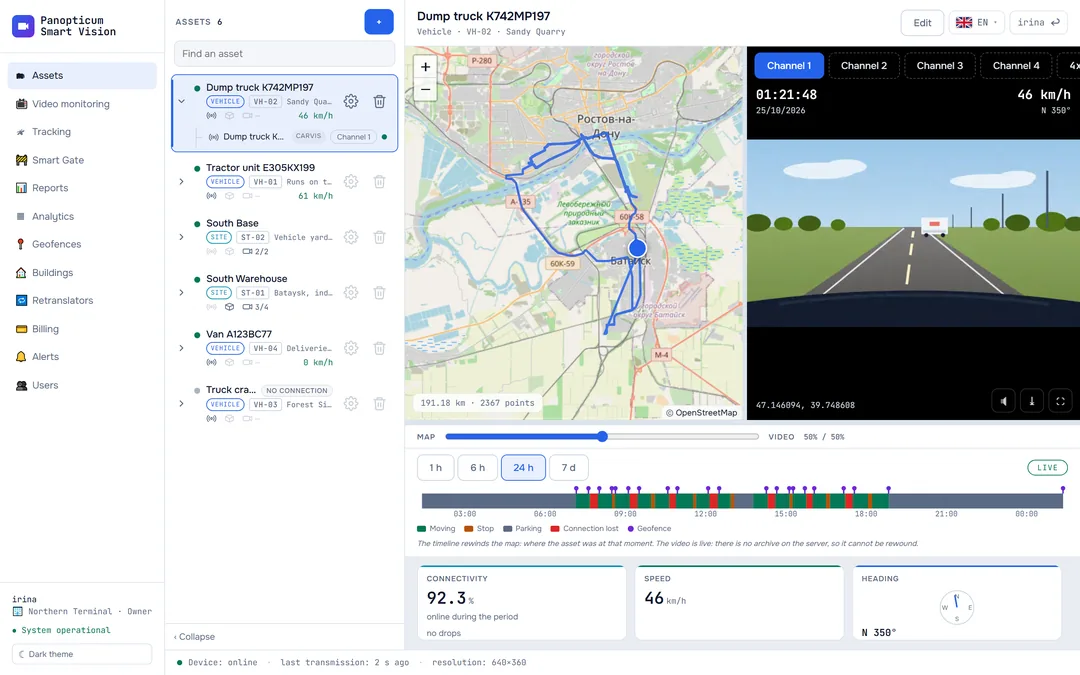
All documentation sectionsA Carvis DVR in a vehicle can stream live video from its cameras, up to four channels: each channel has its own camera, for example the road, the cab, the body and the reversing camera. The video travels over the vehicle’s mobile connection, so it is turned on only on request and only while someone is watching.
Where to turn it on
- Assets: above the video window, the “Channel 1”, “Channel 2” buttons and so on. If the asset has no site cameras and the DVR is online, the first channel starts by itself when you select the asset.
- Tracking: the video button in the device panel.
- Video monitoring: the DVRs block under the cameras, with a start button for each DVR. These tiles never start by themselves; otherwise opening the page would turn on video in every vehicle at once.
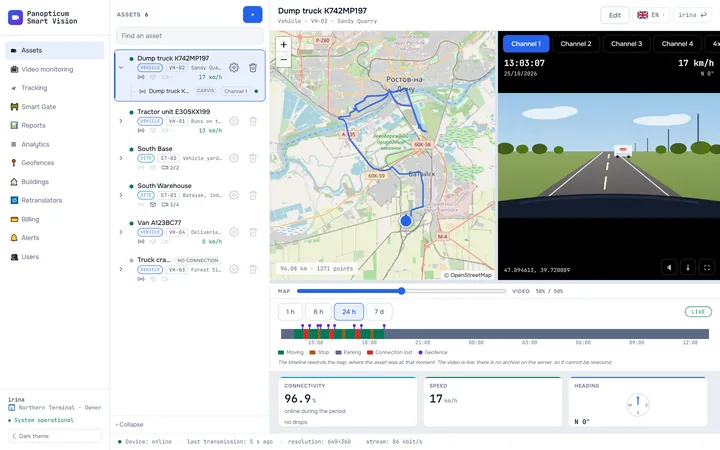
1In Assets, choose a vehicle with a DVR.
2Above the video window, choose a channel: “Channel 1”, “Channel 2” and so on.
3The first picture arrives after 10 or 15 seconds: the DVR starts the stream from a keyframe.
Why video does not start at once
The start command goes to the DVR over its connection to the server. The DVR then starts sending the stream, and the server assembles fragments for the browser from it, starting with a keyframe. A DVR’s keyframe can come only every few seconds, so the first picture arrives after 10 or 15 seconds. Until it does, the window shows how much has been received.
- If the DVR is offline, the channel buttons are greyed out: the start command has no way to get there.
- If there is no camera on the channel, the DVR agrees but sends nothing. The window will say “The DVR sends no video. Is a camera connected to this channel?”.
- If the stream is flowing but no fragment ever comes together, the device’s keyframes are too rare: this is set in the DVR.
Main and light stream
By default the DVR sends the light stream: a smaller picture that gets through a weak mobile connection. The “HD” switch in Tracking asks for the main stream: larger, but it needs a wide channel, and on a slow connection the device will start dropping frames. The line under the video shows the resolution, the frame rate and the stream speed; if the device claims twice as many frames as actually arrive, the line is highlighted: the vehicle’s connection cannot keep up.
How long a channel lives
- While the video is being watched, the page confirms to the DVR every few seconds that it is still needed. Leave the page or close the window, and the vehicle’s channel is released.
- Video is not kept going on a hidden browser tab: the DVR closes the channel by itself after a minute.
- No more than four DVRs work on the video wall at the same time: each one occupies its vehicle’s channel and server capacity.
In the apps
Web
Everything described above.
Windows
DVR channels in Assets and Tracking, the HD switch.
Android
DVR channels in the asset card and in Tracking; DVRs on the video wall start with a button.
Telegram
DVR channels in the asset card and in Tracking.
If something went wrong
- The channel buttons are grey. The DVR is offline; look at its connectivity history.
- Video starts and then freezes. The vehicle’s mobile connection cannot carry the stream: turn HD off and check the coverage where the vehicle is parked.
- One channel works, the others do not. No cameras are connected on those channels, or they are faulty.
See also
Found a mistake, or didn’t find an answer? Write to us on Telegram or send us a request, and we will reply and fix the article.