

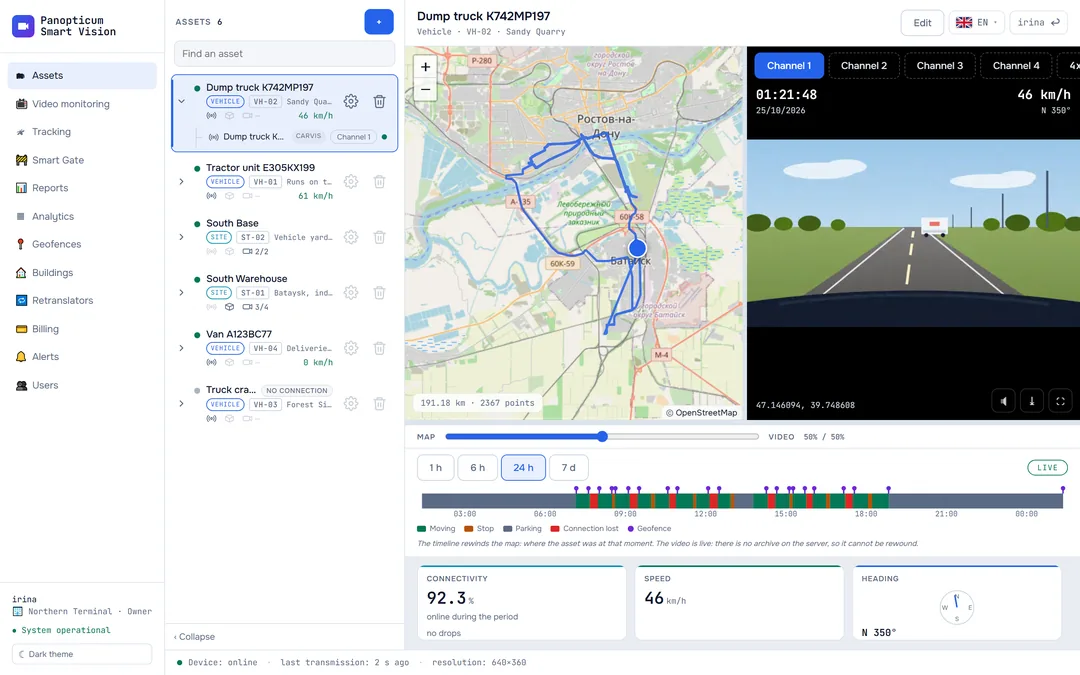
The “Connectivity” panel in Tracking answers a question the map does not ask: when the device was online. A track cannot tell you this: a parked vehicle sends ‘I am alive’ signals but no new points, and points without a satellite fix are not stored at all. Going by the track alone, a vehicle switched off for the night would look as if it had disappeared.
The “Connectivity” panel
The panel opens with the signal icon button in the Tracking header and remembers whether it is open. The period is chosen with the “24 h”, “7 d” and “30 d” buttons.

- Each device has a band: the greener a stretch, the longer the device was online in it. An empty stretch means there was no connection.
- Orange marks the time when the device was uploading its stored history. Points arrive in batches at such moments and say nothing about the connection.
- Pale green marks the time before the server started recording the device’s connectivity: there it is estimated from the track points and comes out lower than it was.
- On the right of a device, when it was last online: “now”, 5 min ago or “never connected”, if the device has never appeared.
- A tooltip on a stretch shows the time, the connectivity percentage and the number of points.
Clicking a device expands the details: points over time, the share of time online, the number of drops and the longest pause.
How it is calculated
Once a minute the server records which devices are online: a device counts as online if anything has come from it within the last 3 minutes. If there was no record in some minute through the fault of our server, the stretch is hatched and does not count as the device being silent.
Where else connectivity shows
- The “Connectivity” tile in the asset card: the share of time online for the period and how many times the device’s connection dropped. Frequent drops with ‘100% online’ explain why DVR video does not start.
- The “Connection losses” table in reports: every drop from two minutes and the place just before it (Report tables and charts).
- The bot’s /status command: a fleet summary that names separately the devices that have never been online, have gone silent or keep dropping the connection.
How to read a band
| Picture | What it usually means |
|---|---|
| The band is empty from the very start, “never connected” | The device is set to the wrong address, port or protocol, or the SIM has no internet |
| It was green and then broke off | Power or coverage was lost: the vehicle is in a garage, the battery is disconnected |
| Frequent short gaps | A weak mobile connection along the route |
| Orange stretches after a gap | The connection is back, and the device is sending what it stored: the track will fill in after the fact |
In the apps
Web
Everything described above.
Windows
A floating “Connectivity” window on the Tracking page with the same colours; the app remembers its place and size.
Android
Device connectivity opens with a button on the Tracking map.
Telegram
A connectivity summary is sent by the bot’s /status command.
If it did not work
- If the device has never been online, start with How to connect a device.
- Step-by-step troubleshooting in Device is offline.
See also
Found a mistake, or didn’t find an answer? Write to us on Telegram or send us a request, and we will reply and fix the article.