

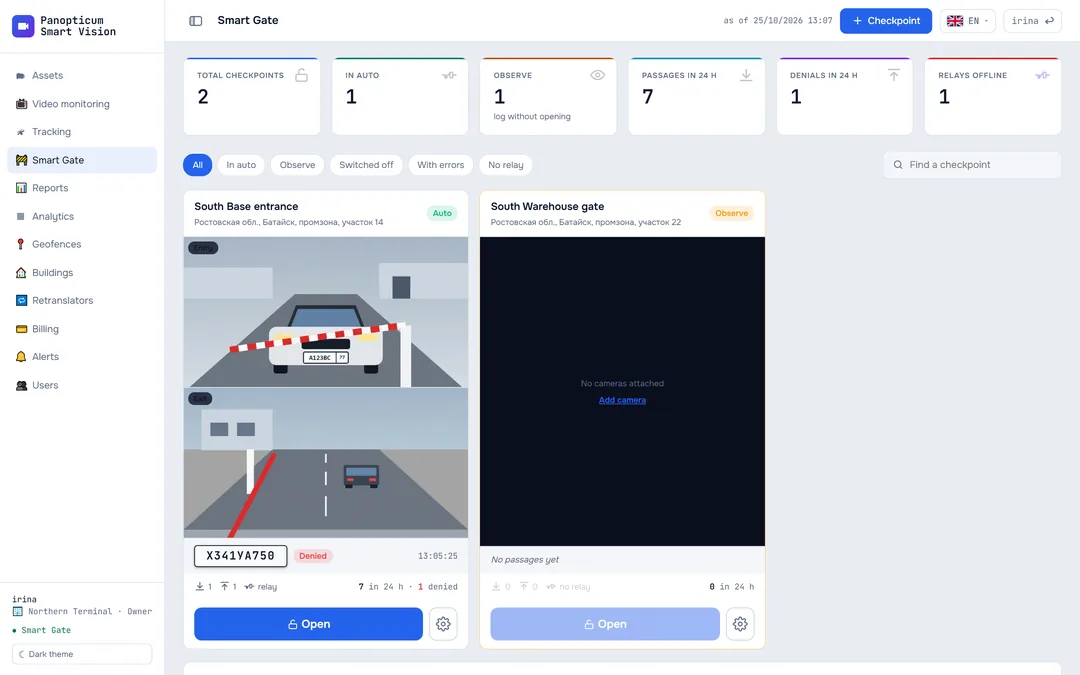
The Smart Gate section shows all the checkpoints at once: what is happening at the gates, who passed last and whether a relay has broken. From here the barrier is also opened by hand and the passage log is reviewed. How to set up a checkpoint, cameras and relays is explained in Smart Gate.
The checkpoint wall
At the top there is a summary: how many checkpoints there are, how many are in Auto and in Observe, how many passages and denials in 24 hours and whether any relay is silent. Below it there is a tile for each checkpoint.

- Summary: checkpoints, modes, passages and denials in 24 h
- Checkpoint: entry and exit camera frames, mode
- Last passage: plate, decision, time
- Open manually and checkpoint settings
- A tile shows frames from the entry and exit cameras. These are snapshots that refresh as they become ready, not live video: there can be dozens of checkpoints on the wall, and video from each would take up the connection of every site.
- Under the frames there is the last passage: plate, decision and time, and below that the number of passages and denials in 24 hours.
- Clicking a tile opens the checkpoint card; the cog leads straight to its settings.
- The filters above the wall leave the checkpoints in Auto, in Observe, turned off, with relay errors or without a relay. The search looks through names.
A tile has one status colour: red marks only a real failure, for example a relay that did not answer. Unfinished installation, say a missing exit camera, is described in words in the empty place of the frame.
The checkpoint card
At the top there is live video from the checkpoint’s cameras; it turns on by itself. Under it are the tabs: “Overview”, “Cameras”, “Relays”, “Passes”, “Log” and “Settings”.

- Live video from the checkpoint’s cameras
- Status line: mode, cameras, relay, last passage
- Open the barrier by hand
- Tabs: overview, cameras, relays, passes, log, settings
- The height of the video can be changed by dragging its lower edge; your choice is remembered. Collapsed video and a hidden browser tab turn the streams off: there is nobody to watch, and the site’s connection is busy.
- The “Overview” tab has the checkpoint’s settings in brief, the counters for 24 hours and the latest passages with the “Full log” button.
Opening by hand
The “Open” button is on the checkpoint tile, in the card header and over the entry camera’s frame. A press sends a pulse to the relay at once, and the bar on the button shows that the command has gone. The passage is written to the log with the decision “Opened manually” and the name of whoever pressed it.
The passage log
In the “Log” tab each passage is a row: time, frame, plate, direction, decision and reason.

- Search by number plate
- Filter by decision
- Passage: frame, plate, decision, time
- Export the log to CSV
- The frame and the plate crop are kept for every passage: the crop shows exactly what recognition read.
- Filters: search by plate, decision, the source of the plate (our recognition, your own ANPR camera or opening by hand) and dates.
- “Export CSV” saves the log with the current filters.
- The log is kept for 90 days, after which the records and frames are deleted. The frames of denials live shorter, 30 days: the record of the denial itself stays.
| Decision | What it means |
|---|---|
| Opened | The checkpoint opened on a pass or for free exit |
| Denied | The plate is not on the list or was read unreliably; the reason is in the next column |
| Block list | The plate is on the block list, an alert has gone out |
| Observe | The checkpoint is in Observe: “would have opened” or “would not have opened”, the barrier was not touched |
| Opened manually | The “Open” button was pressed; the row has the name of whoever pressed it |
| Relay error | The checkpoint decided to open, but the relay did not answer |
In the apps
Web
Everything described above.
Windows
A checkpoint wall with camera snapshots, a checkpoint card with tabs, passes and the log. Clicking a frame opens the camera’s live video. Opening by hand and the relay test ask for confirmation.
Android
A list of checkpoints, a card with video, the “Open” button and the passage log. Passage times are shown by the phone’s clock.
Telegram
In the Telegram panel, the checkpoints are in the bottom menu: the checkpoints, a checkpoint card, opening and the log.
If it did not work
- The frame in the tile is grey with a caption. The frame is still loading: a camera snapshot arrives every few seconds. If there is a test card instead, the camera is unreachable.
- There is no “Open” button. You have the viewer role, or the checkpoint has no relay.
- “Relay error” in the log. The relay did not answer the command; the breakdown is in Smart Gate.
See also
Found a mistake, or didn’t find an answer? Write to us on Telegram or send us a request, and we will reply and fix the article.