

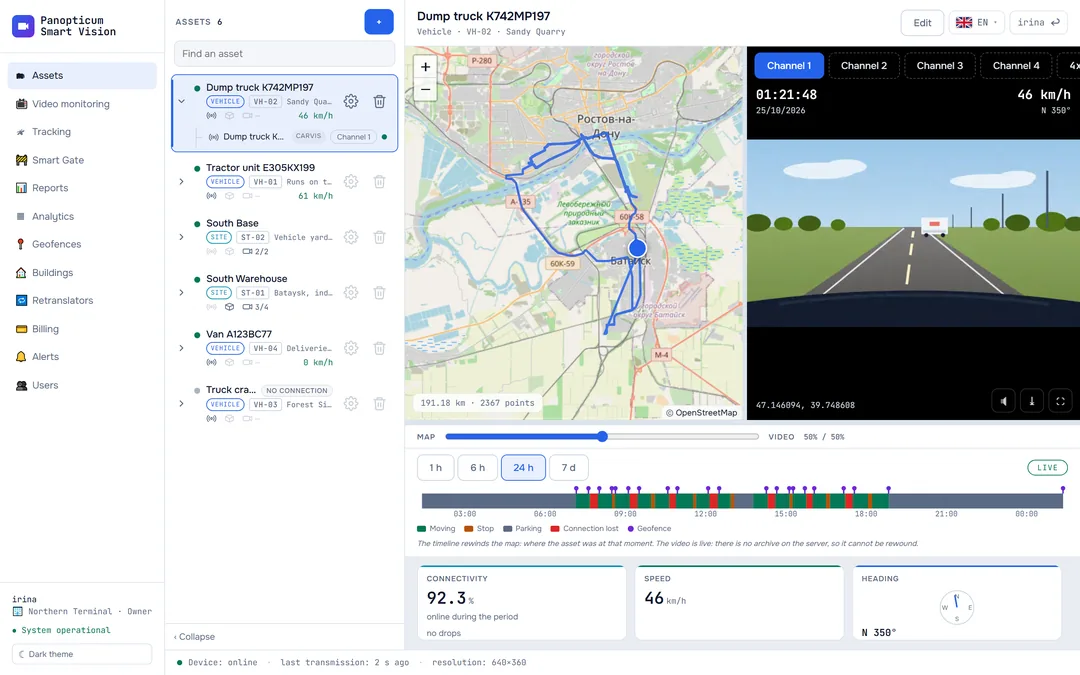
A PTZ camera is controlled with a pad over the video: eight arrows, zoom and stop. The control appears only for cameras that have confirmed over ONVIF themselves that they can pan and tilt: an arrow that does nothing would look like a fault.
Where the control appears
- On a camera tile in Video monitoring, small.
- In the camera’s full-screen view, large.
- In the video window in Assets, once the picture has arrived: there is no point turning the camera while looking at a test card.

How to turn the camera
- Hold an arrow, and the camera turns until you let go. Releasing the arrow stops the camera.
- Plus and minus zoom in and out, if the camera has a zoom.
- The square in the centre stops the camera at once.
A press lights up instantly, while the command reaches the camera in about two seconds: it travels through the trunk at the site over a mobile connection. The caption under the arrows shows what is happening with the drive.
While an arrow is held, the control repeats the command every 1.2 seconds, and each command carries its own time limit of no more than 5 seconds. If the connection drops in the middle of a turn and the “stop” command does not get through, the camera finishes that time limit and stops by itself instead of turning all the way to the end. A hidden browser tab and a closed full-screen view also stop the drive.
The camera is not moving
- The arrow is held: the control repeats the command every 1.2 seconds, and the camera turns.
- The arrow is released: a “stop” goes out, and the camera halts.
- The connection drops in the middle of a turn: new commands do not reach the camera, and neither does “stop”.
- The camera stops by itself. Each command carries its own time limit of no more than 5 seconds: a lost “stop” will not leave the camera turning all the way to the end.
Moving and hiding the control
- The control is dragged by the handle in its left column, the icon with arrows in all directions. Its position is remembered separately for the tile and for the full-screen view; a double click on the handle puts the control back in its default place.
- The cross under the handle hides the control so that it does not cover the picture. It can be brought back with the PTZ button on the picture. Your choice is remembered.
How the control appears
PTZ cameras are connected through a trunk. When the trunk scans the site’s network, it asks the cameras over ONVIF whether they have a pan and tilt drive and which stream they can be controlled with. If a camera that certainly turns has no control in the section, check that ONVIF is turned on in it and its username and password are entered, and ask support to rescan the site.
In the apps
Web
Everything described above.
Windows
The same control in the full-screen view, in a separate camera window and in Assets; it can also be dragged and hidden.
Android
The control in the camera’s full-screen view, under the picture.
Telegram
The control in the camera’s full-screen view, under the picture.
If it did not work
- There is no control. The camera has not confirmed pan and tilt over ONVIF or is not connected through a trunk.
- The camera turns with a delay. That is the command’s path to the site over a mobile connection; hold the arrow longer rather than pressing many times.
- The caption “drive not responding”. No answer came within a few seconds: the trunk is offline or the camera does not accept commands.
See also
Found a mistake, or didn’t find an answer? Write to us on Telegram or send us a request, and we will reply and fix the article.