

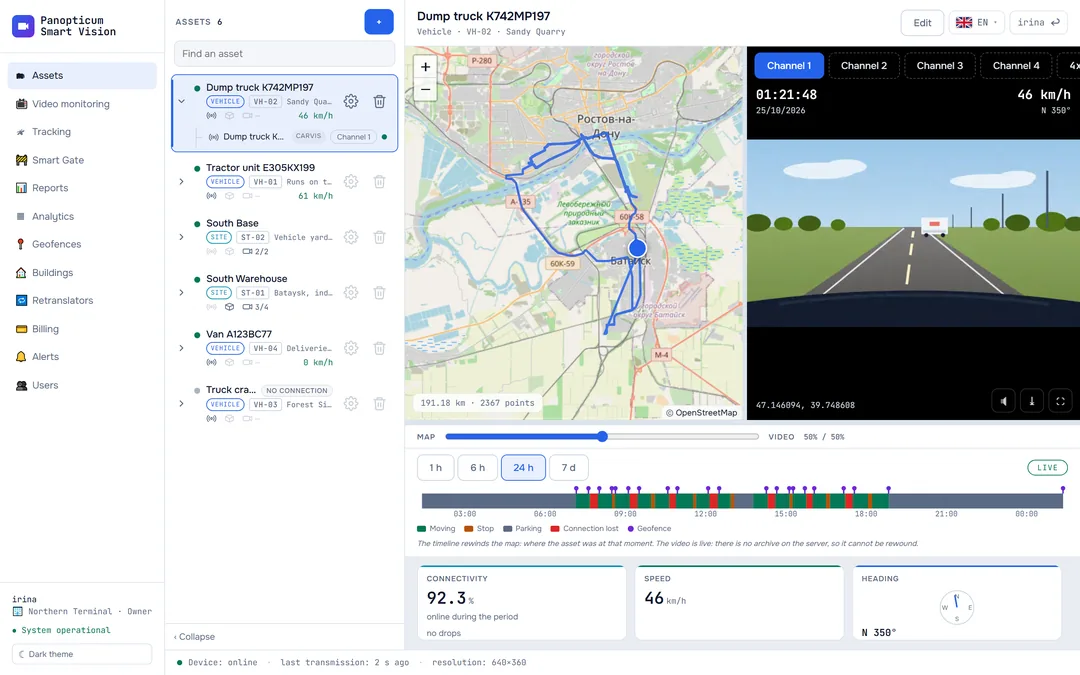
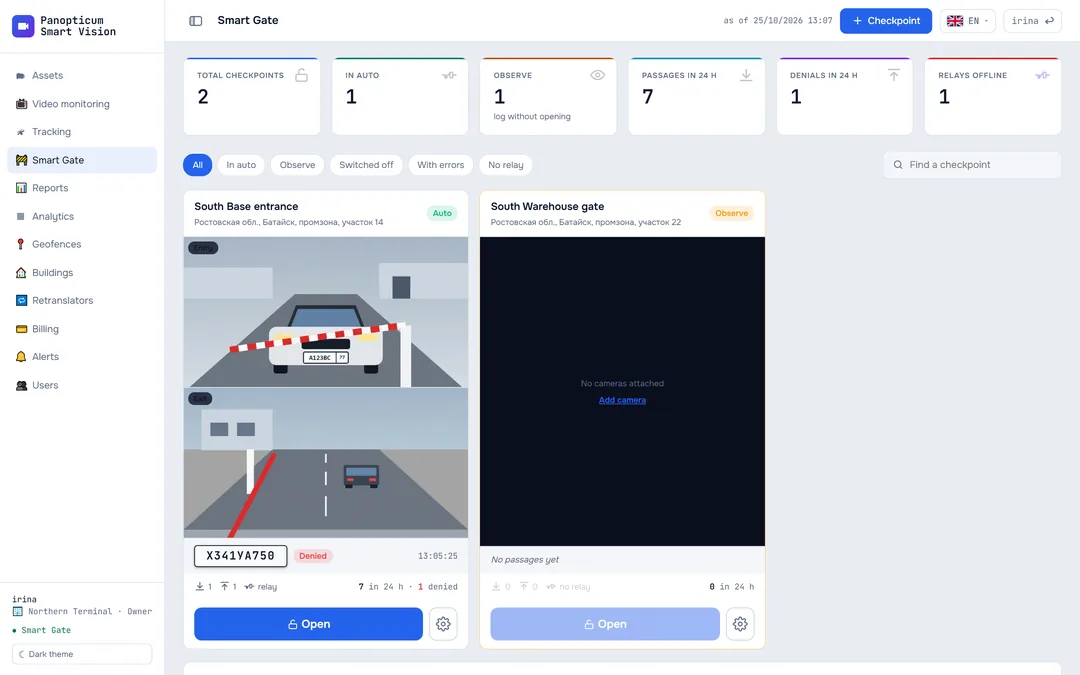
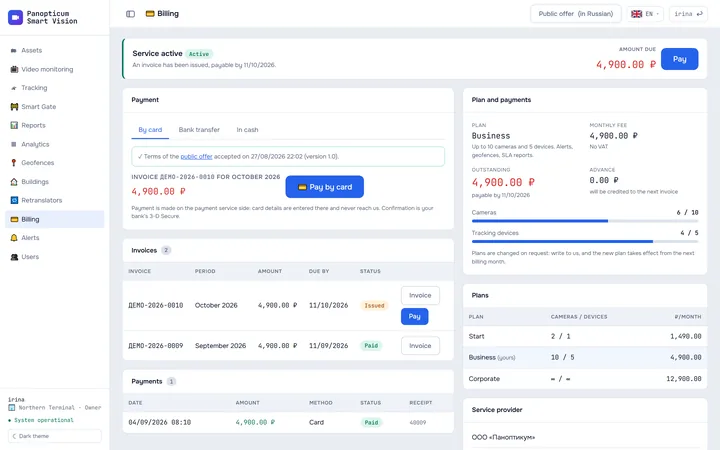
The Billing section shows which plan the account has, which invoices have been issued and paid and how much more equipment can be added. Any employee of the account can view the section, but only the owner can pay and edit the billing details.

The state at the top of the page
| State | What it means |
|---|---|
| Service active | Everything is paid, or an invoice has been issued and the payment deadline has not passed yet |
| Trial service | A trial period: no invoices are issued, the plan limits apply |
| Payment overdue | The deadline has passed, the web app works, the suspension date is shown |
| Access to the panel is suspended | The web app and the apps are closed until payment, the equipment keeps working |
On the right there is the amount due and the “Pay” button: it pays the oldest open invoice, and the others are paid with the buttons in the “Invoices” table.
Invoices and deadlines
- The invoice for the month is issued on the 1st. It has to be paid within 10 days.
- After the deadline there are 5 more days of grace: the web app works, with a warning at the top.
- If the invoice is still not paid, access to the web app and the apps is suspended.
- Reminders arrive 3 days before the deadline, on the day of the deadline, after it and the day before the suspension, each once, through the channels set up in Alerts. The reminders are in Russian for now.
1 October: invoice issued
- The invoice for the month is issued on the 1st and has to be paid within 10 days.
- Reminders: 3 days before the deadline, on the day of the deadline, after it and the day before the suspension. Each arrives once.
- 5 days of grace after the deadline: the web app works, with an overdue banner at the top.
- Suspension closes the web app and the apps, but devices and cameras keep recording data: after payment the history will be complete, with no gap.
- Payment brings access back at once, without waiting for the scheduled check.
How to pay
There are three ways, on the tabs of the “Payment” block.
- Bank transfer: fill in the payer’s details (name, tax number (INN), tax registration code (KPP), address, email for documents) and download the invoice with the “Invoice” button in the table. The details go into the invoice.
- By card: the terms of the public offer are accepted once, then “Pay by card” leads to the payment service’s page. The card details are entered there and never reach us; 3-D Secure confirmation comes from your bank.
- In cash: at the office, by the invoice number; our employee records the payment.
1Open Billing and press “Pay”.
2The offer terms are accepted once.
3“Pay by card” takes you to the payment service’s page: card details are entered there and never reach us. Or download the invoice and pay it by bank transfer.
4After payment the invoice becomes “Paid”, and suspended access returns at once.
As soon as the payment has arrived, the invoice becomes “Paid”, and suspended access comes back at once, without waiting for the scheduled check. An overpayment stays as an advance and is credited to the next invoice.
Plan and limits
The “Plan and payments” block shows the plan, the monthly fee, the debt, the advance and usage bars: how many cameras and devices have been added out of how many are allowed. Below it there is the table of plans.
- The plan limit restricts only adding new equipment. Equipment already added is never turned off.
- The plan can be changed on request; the new plan takes effect from the next billing month.
- Plan prices and what they include are on the Pricing page.
The trial period
Signing up on the website gives 14 days of the “Business” plan. During this time no invoices are issued, and at the end the account moves to payment from the next billing month.
In the apps
Web
Everything described above.
Windows
The Billing section: the state, invoices, payments and payment. While access is suspended, the app shows a bar saying so, with a button that opens Billing.
Android
The Billing section with the same main pay button. The printable invoice and the offer open inside the app.
Telegram
The Telegram panel has no Billing section: payment is made in the web app or in the apps. If access is suspended, the panel will say so.
If it did not work
- There is no “Pay” button. Only the account owner can pay; for everyone else the section is view-only.
- I paid, but access is closed. With a bank transfer, access opens when the money arrives and the payment is recorded. Write to us with the invoice number.
- A camera or device cannot be added. The plan limit has been reached: change the plan or delete equipment you no longer need.
See also
Found a mistake, or didn’t find an answer? Write to us on Telegram or send us a request, and we will reply and fix the article.