

Section “Apps”
All documentation sectionsThe Windows app is the same Panopticum web app as a separate program: handy at a control-room desk where the video wall and the map are open all day. The data and permissions are the same as in the browser: the app works with the server and keeps nothing of its own except its window settings.
Installation
- Download the installer on the Apps page: version 3.2.3, about 104 MB. You need 64-bit Windows 10 or 11.
- Run the installer: it asks for administrator rights. The installer speaks the language of Windows (if Windows is neither English nor Russian, it asks), and the app will be in the same language. A shortcut appears in the Start menu; a desktop icon is a tick box in the installer.
- On the first launch, the “Server connection” window opens.
Signing in

- Server address
- Web app username
- Password: stored encrypted by Windows
- Connection test: who has signed in and to which account
- Interface language
The server address is already filled in. Enter your web app username and password and press “Test the connection”: the app shows who has signed in, to which account and with what role. Then press “Connect”. The “Remember the password” tick box stores the password encrypted by Windows, and on the next launch the app signs in by itself.
The interface language, English or Russian, is chosen in the list in the top right corner of this window. After a change, the app offers to restart in the new language.
To sign in under another username, use the “Switch account” button in the left menu; to change the server address, use the “Connection” button.
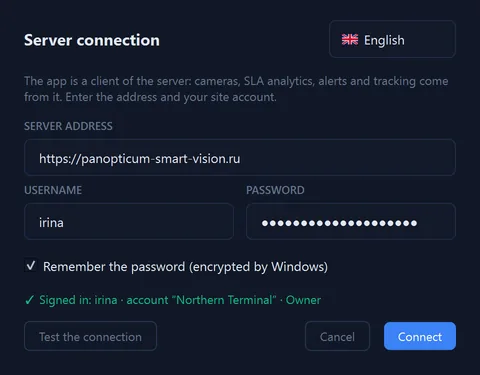
1The server address is already filled in. If your company has its own server, enter it here.
2Enter your web app username.
3And the password: Windows stores it encrypted.
4The connection check shows who is signing in and to which account. Then connect.
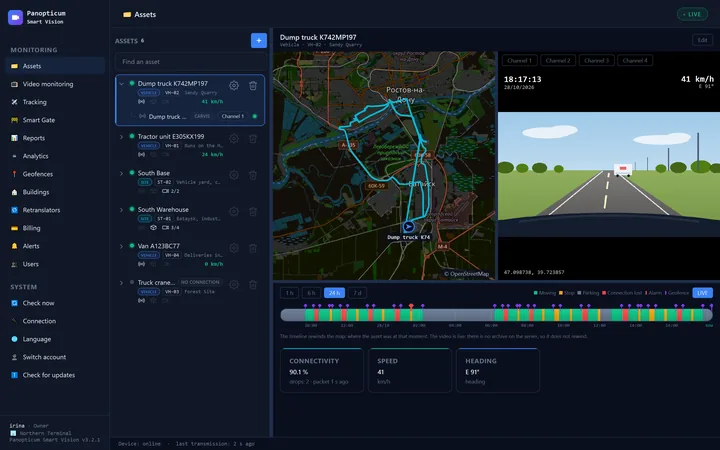
5The main window opens on Assets.
Assets

- Asset list and search
- Map with the track
- Video: DVR channels
- Timeline
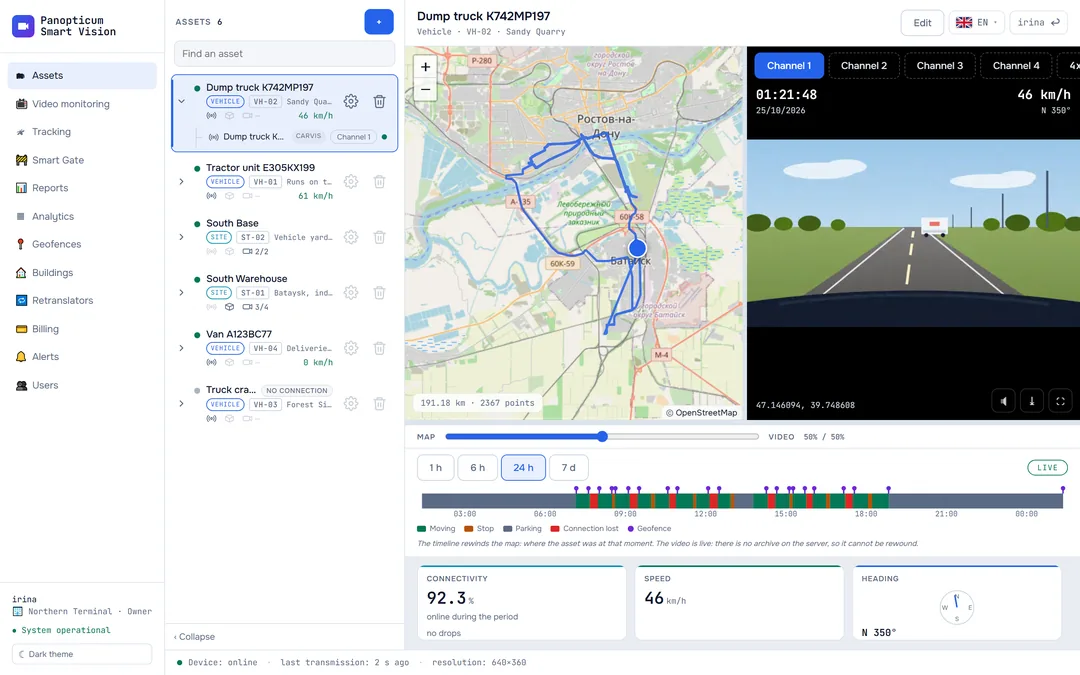
The section works as in the browser: the asset list with the equipment tree, the map with the track, video, the timeline and readings. The borders between the map and the video and between the top part and the timeline can be dragged with the mouse, and their position is remembered. More in Assets.
Video wall

Unlike in the browser, tiles here can be dragged and resized with the mouse, and the “Auto” layout picks a grid for the number of cameras by itself. A double click opens a camera full screen; a PTZ camera has its PTZ control there.
Tracking

The map with devices, the chosen device’s telemetry, track history and the connectivity panel. The panels float: they can be moved and resized, and the connectivity panel remembers its place between launches. More in Tracking.
The System menu
- Check now: the server checks all cameras again without waiting for the next round of checks.
- Connection: the server address, username and password.
- Language: English or Russian. The choice is remembered, and the app restarts in the new language; if you answer “Later”, the language changes at the next launch.
- Switch account: sign out and sign in under another username.
- Check for updates: see below.
Updates
At start-up the app checks for a new version by itself and offers to install it; the update installs over the old version, and your settings, sign-in and language are kept. The offer can be postponed. To check by hand, use “Check for updates” in the System menu.
An app updated from version 3.1 or earlier stays in Russian: switch it to English with “Language” in the System menu.
How it differs from the browser
- The app comes in the dark theme only.
- A video wall with draggable tiles and the Auto layout.
- Cameras on the local network play directly, without the server.
- Windows and panels remember their size and position.
If it does not work
- “Test the connection” shows an error. Check the server address, username and password: they are the same as for signing in on the website. If the computer runs a proxy or a traffic filter, allow the program to reach the server address.
- Signed in, but “no account assigned”. Your username is not linked to a company yet, so no equipment will be visible. Ask the account owner.
- A camera plays in the browser but shows No Signal in the app. See ‘Where the video comes from’ above.
See also
Found a mistake, or didn’t find an answer? Write to us on Telegram or send us a request, and we will reply and fix the article.