

Section “Apps”
All documentation sectionsThe alert bot
The @PanopticumAlertBot bot sends messages when cameras go down and come back, about geofence and Smart Gate events, and invoice reminders. You do not need a bot of your own, and you do not need to look up a chat ID either.
The bot writes in Russian for now; the Telegram panel and the alert settings in the web app are in English.
Connecting
- In the web app, open Alerts and press “Connect Telegram”.
- Follow the link or scan the QR code with your phone, and press “Start” in Telegram.
- The bot replies with the account the chat is linked to, and the chat appears in the list of connected chats.
A group is connected the same way: add the bot to the group and send the /connect CODE command there with the code from Alerts.
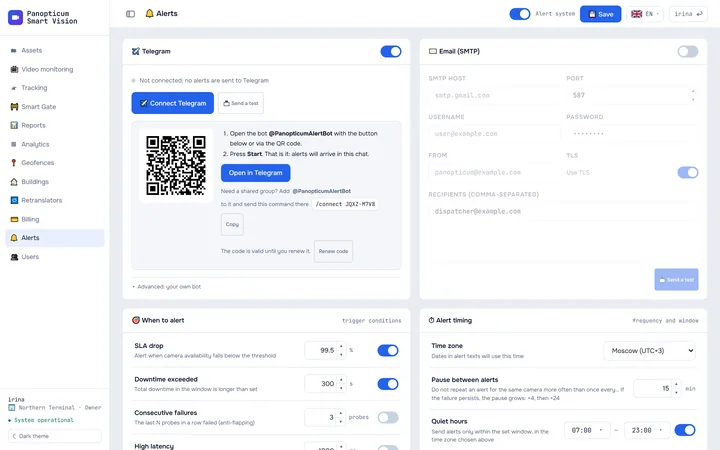
1Open Alerts and press “Connect Telegram”.
2Point your phone’s camera at the QR code.
3Or press “Open in Telegram”, then “Start” in the bot chat.
4For a shared group, add the bot to the group and send this command to it.
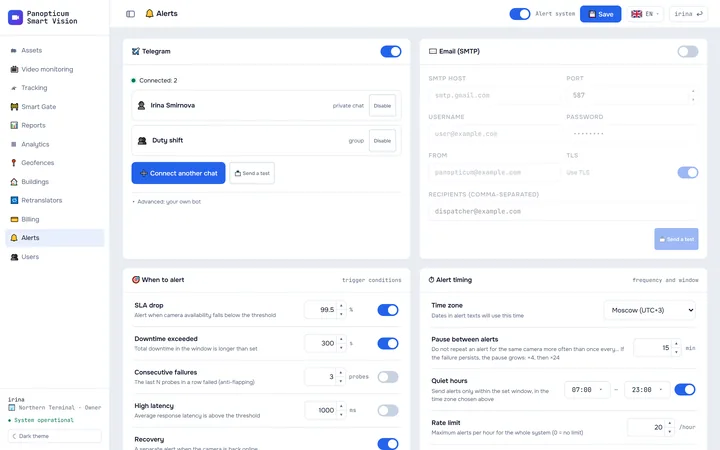
5The chat appears in the list of connected chats.
6“Send a test” checks that messages get through.
Quiet hours and limits
In Alerts you set what to report, quiet hours, the pause between repeats and the limit of messages per hour. While a failure lasts, repeats come with a growing pause, and at night, during quiet hours, there are no messages. More in Alerts.
Linking the chat
- Linking. A QR code or a link opens the bot, and the “Start” button links the chat. For a shared group, the bot is added to it and sent the /connect command with the code.
- Failure. The camera is unavailable for longer than the threshold (5 minutes here): an alert arrives.
- Repeats with a growing pause while the failure lasts: after 15 minutes, another 15, an hour, then 6 hours.
- Quiet hours. Nothing arrives outside the alert window. If the camera is still unavailable, the message comes when the window opens.
- The camera is back: an ‘online again’ message arrives. On top of everything, there is a limit on messages per hour for the whole account.
Commands
/status: a fleet summary for the last 24 hours,/status 7dfor a week,/status 30dfor a month. It names only what needs attention: devices that have never been online, have gone silent or keep dropping the connection, and cameras that are down;/app: open the panel in Telegram;/stop: turn off alerts in this chat;/help: the list of commands.
The Telegram panel
The Mini App opens with the menu button in the chat with the bot or with the /app command. On the first visit the panel asks for your web app username and password; after that it signs you in by itself. Inside are assets, video, tracking, Smart Gate, geofences, buildings, reports, retranslators and users, in a light or dark theme. More in A panel in Telegram.
See also
Found a mistake, or didn’t find an answer? Write to us on Telegram or send us a request, and we will reply and fix the article.