

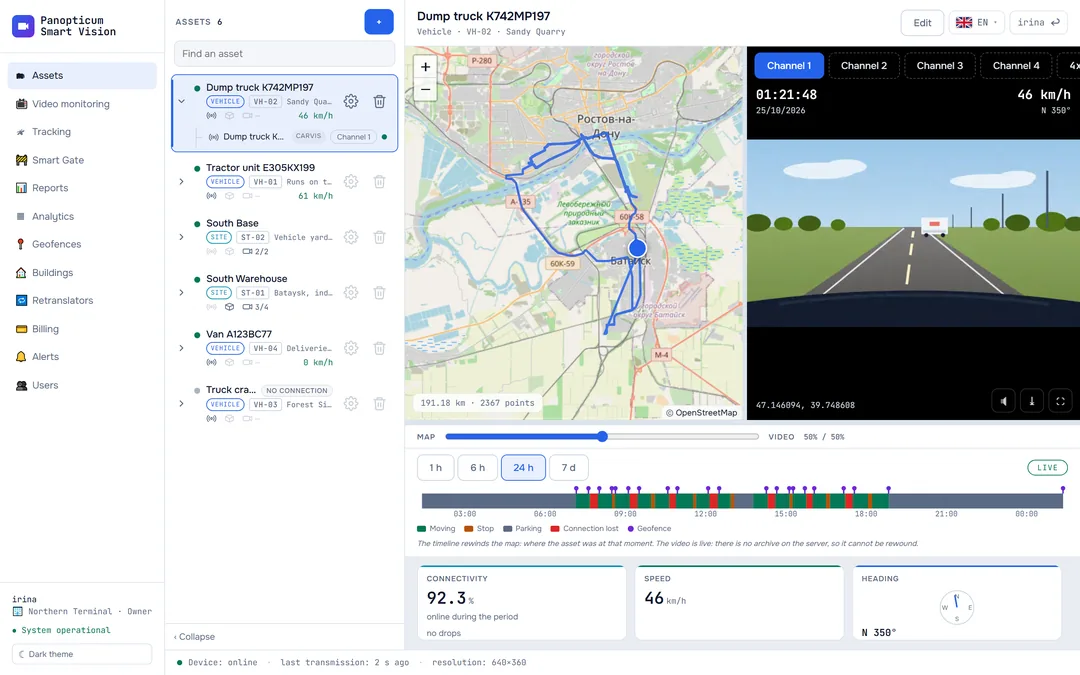
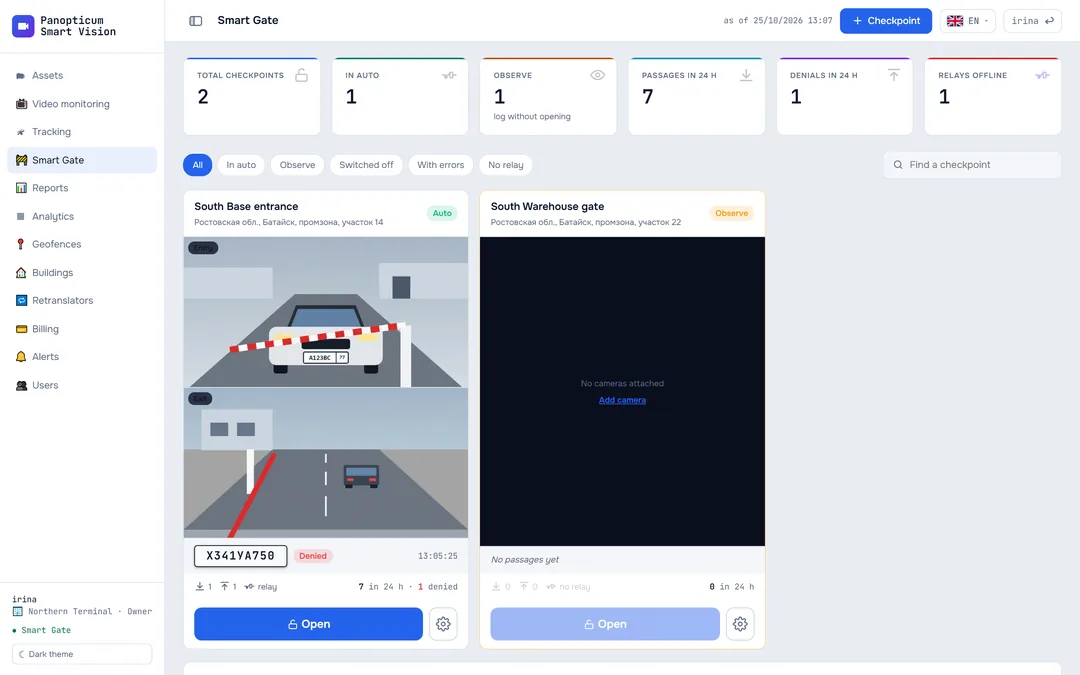
The Alerts section decides where and when messages about failures arrive: to Telegram, by email or both. The rules for cameras are here too, along with the hours when messages may be sent and a log of everything sent. Messages about geofences, checkpoints and payment go through the same channels.

- The account’s alerts are on
- Connected Telegram chats
- Connect another chat and send a test message
The “Alert system” switch at the top right turns all the account’s alerts on and off at once. Changes on the page take effect after the “Save” button. Settings can be edited by the account owner and operators; a viewer can only see them.
Telegram
Messages are sent by our bot @PanopticumAlertBot. A personal chat and a shared group, for example the duty shift’s, can be connected to the account.
The bot’s messages and alert emails are in Russian for now; the alert settings in the web app are in English.
- Press “Connect Telegram”.
- Point the phone’s camera at the QR code or press “Open in Telegram”, and in the bot’s chat press “Start”. The chat appears in the list of connected ones.
- For a group: add the bot to the group and send the /connect command there with the code shown on the page.

- QR code: point the phone’s camera at it
- Command for a shared group
The “Send a test” button checks that messages get through. “Disable” next to a chat unlinks it. The connection code works until it is renewed with the “Renew code” button; after renewal the old code no longer fits.
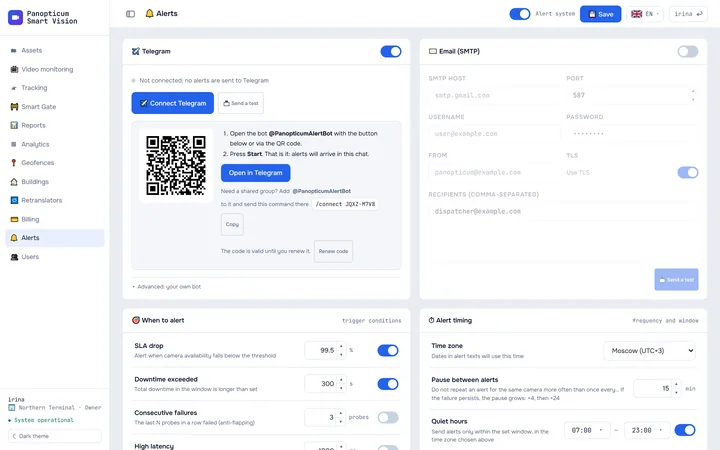
1Open Alerts and press “Connect Telegram”.
2Point your phone’s camera at the QR code.
3Or press “Open in Telegram”, then “Start” in the bot chat.
4For a shared group, add the bot to the group and send this command to it.
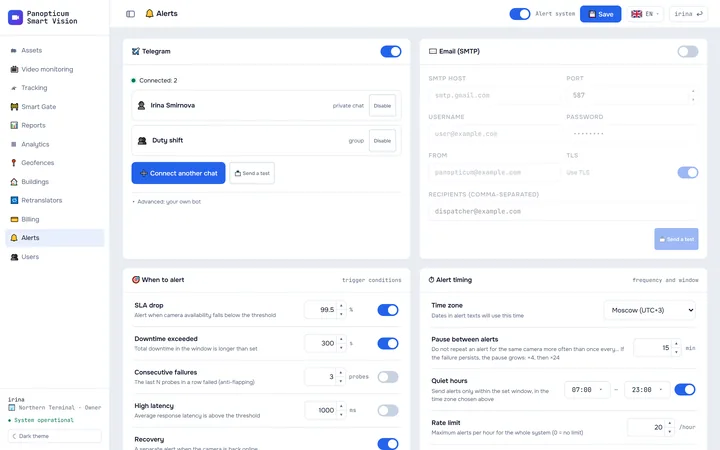
5The chat appears in the list of connected chats.
6“Send a test” checks that messages get through.
For emails, enter the mail server (SMTP), the port, the mailbox username and password, whom to send from and to whom, separated by commas. Turn on the switch in the block header and check it with the “Send a test” button.
When to alert

| Rule | When it fires |
|---|---|
| SLA drop | A camera’s daily availability fell below the threshold, 99.5% by default |
| Downtime exceeded | A camera is unavailable for longer than the set number of seconds, 300 by default |
| Consecutive failures | The camera failed to answer that many checks in a row. Protects against single glitches |
| High latency | The camera’s average response time is above the threshold in milliseconds |
| Recovery | A separate message when the camera is online again |
Cameras are checked once every 30 seconds, and availability is counted over the last 24 hours. More about the checks in Analytics.
Time and frequency
- Time zone: the time in messages is written by it, and the quiet hours are counted by it.
- Pause between alerts: do not repeat a message about the same camera more often than once in that many minutes. If the failure does not go away, the pause grows: after two messages it becomes four times longer, and then 24 times. With a 15-minute pause this means 15 minutes, another 15, an hour, and then once every 6 hours.
- Quiet hours: messages arrive only within the set window, for example from 07:00 to 23:00. Nothing arrives at night; if the camera is still unavailable, the message comes when the window opens.
- Rate limit: no more than that many messages an hour for the whole account, 0 means no limit. Protects against a flood when the connection to a site is lost all at once.
- Minimum samples: do not judge a camera’s SLA while there are fewer checks than the set number, for example right after it is added.
Linking the chat
- Linking. A QR code or a link opens the bot, and the “Start” button links the chat. For a shared group, the bot is added to it and sent the /connect command with the code.
- Failure. The camera is unavailable for longer than the threshold (5 minutes here): an alert arrives.
- Repeats with a growing pause while the failure lasts: after 15 minutes, another 15, an hour, then 6 hours.
- Quiet hours. Nothing arrives outside the alert window. If the camera is still unavailable, the message comes when the window opens.
- The camera is back: an ‘online again’ message arrives. On top of everything, there is a limit on messages per hour for the whole account.
The alert log
At the bottom of the page there is the log: what went out, when, through which channel, to whom and with what result. Messages about geofences and checkpoints are here as well. The log is written even if no channels are set up: this shows that the system noticed the event.
In the apps
Web
Everything described above.
Windows
The Alerts section with the same settings; Telegram is connected with a QR code right from the app.
Android
Alert settings and the log; Telegram is connected with a link to the bot.
Telegram
The bot sends messages to the connected chats; a message about a camera failure has a button that opens its video in the panel. More in The Telegram bot and Mini App.
If it did not work
- Nothing arrives. Check the “Alert system” switch, the connected chats and the quiet hours. The “Send a test” button will show whether a message gets through.
- The bot does not answer “Start”. Open the bot again with the link from the page: it carries your account’s code.
- There are too many messages. Increase the pause between alerts, turn on “Consecutive failures” or set a rate limit.
See also
Found a mistake, or didn’t find an answer? Write to us on Telegram or send us a request, and we will reply and fix the article.