

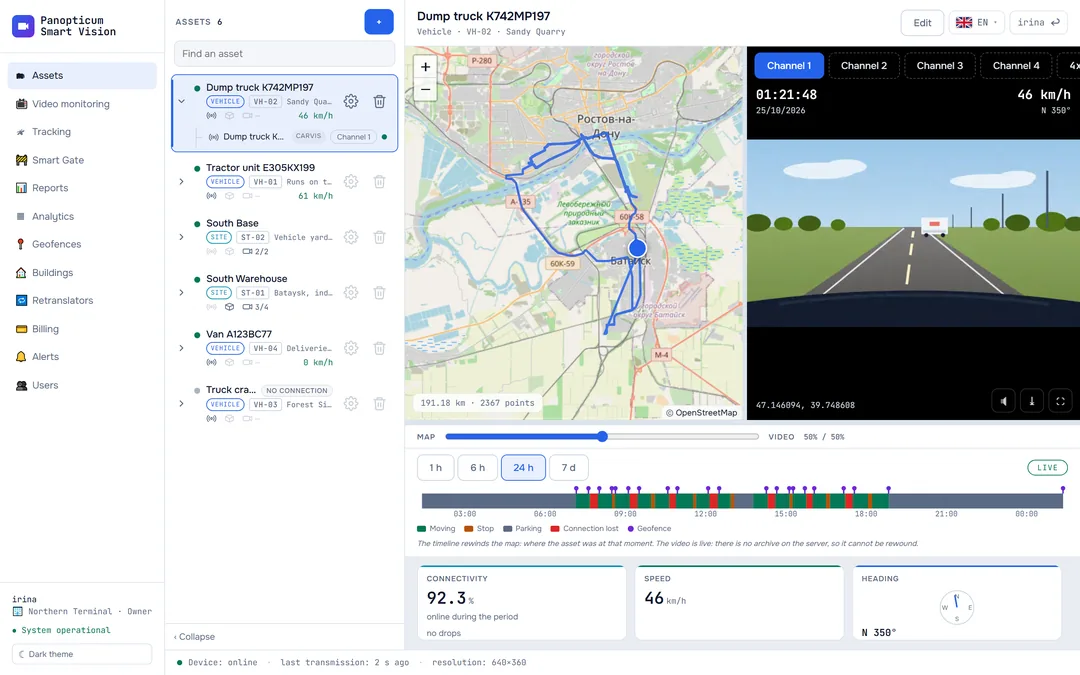
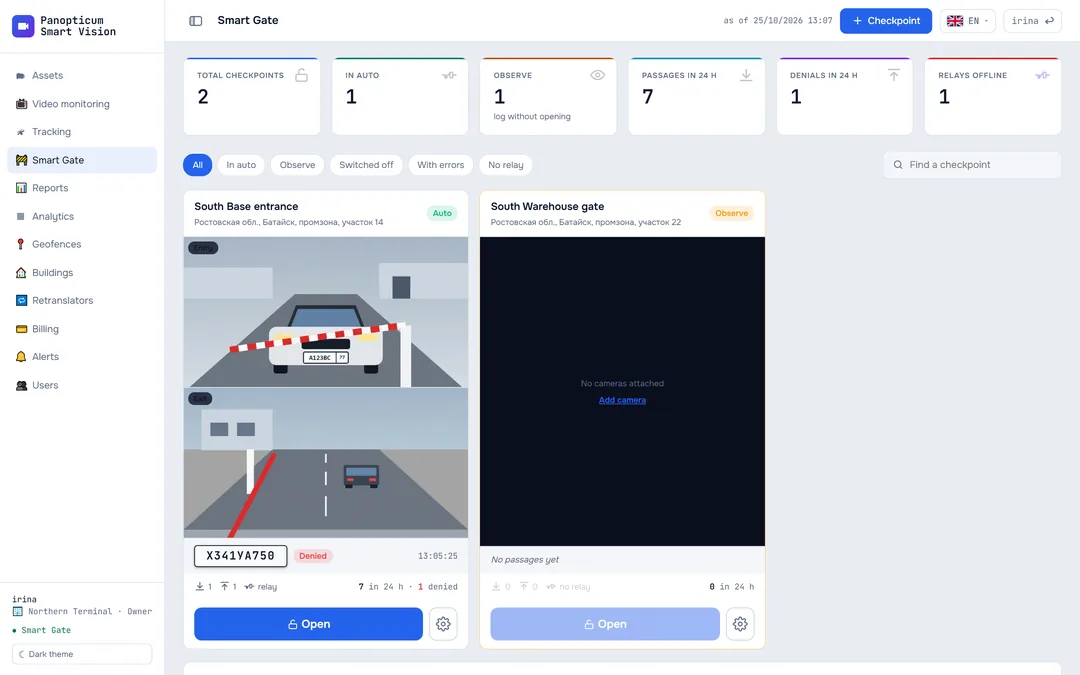
The Video monitoring section is the video wall: all the account’s cameras at once, as tiles, and the vehicles’ DVRs below them. From here any camera opens in full screen.
The video wall

- Grid size
- Camera tile: name, location, LIVE
- PTZ control (pan-tilt cameras only)
- Camera with no signal
- Vehicle DVRs: video on request
A tile shows the camera’s name and location, the LIVE mark, the camera’s number in the system and the frame time. The “Grid” buttons change the layout from 2×2 to 6×6; one button serves both grids, cameras and DVRs, so that they do not drift apart. The layout is not remembered: next time it is 3×3 again.
Tiles start one after another rather than all at once: this way a dozen cameras come up faster than if the server woke all the sources at the same moment.
What a tile says
| Caption | What is happening |
|---|---|
| Connecting | The player is requesting the stream. Usually a matter of seconds. |
| Waiting for stream | The server has answered, but there is no first frame yet: the camera does not send a keyframe right away. |
| No Signal | The stream is lost. The player keeps retrying by itself with a growing pause: 5, 10, 20, 40, 60 seconds, and the tile comes back to life as soon as the camera returns. |
| Camera offline | The availability check considers the camera down. The retries go on as well. |
A lost picture is replaced by a test card, as on an old TV set: it is hard to mistake it for a camera image.
The player requests the stream from the server.
- Connecting. The player requests the stream from the server, and the server wakes the camera. Until there is a frame, the tile shows a test card with a caption.
- Live video. The frames come, and the clock on the tile runs.
- The stream is lost. A test card and “No Signal” take the place of the frame: it is hard to mistake for a camera image.
- Retries by themselves. The tile tries again after 5, 10, 20 and 40 seconds and then once a minute. The camera is back, and the video plays without a page reload.
A camera in full screen
Clicking a tile opens the camera in full screen; the “Close” button takes you back to the wall.

- Control: arrows, zoom, stop
A PTZ camera has a control over the picture: arrows, zoom and stop. The control appears only if the camera itself has confirmed a pan and tilt mechanism. It can be hidden with the cross and brought back with the PTZ button. Details in PTZ cameras.
DVRs
Below the cameras there is the “DVRs” block: video from vehicles that carry a Carvis DVR. Unlike a camera, a DVR tile does not start by itself: video from a vehicle goes over its mobile connection and occupies it, so a person turns it on with the ▶ button. Under the button there is the channel choice: a DVR records from several cameras, and each has its own number.
- Up to four DVRs can be watched at once. A fifth will ask you to turn off one of those already open.
- For an offline DVR the button is dimmed and the tile says “No connection to the DVR”: there is nothing to send the video command over.
- If you leave the page or hide the tab, the vehicle’s channel is released by itself.
- A device that has never been online is not shown on the wall: it will have no video until it is set up. It stays in Tracking.
Why the first picture from a DVR arrives only after 10 or 15 seconds is explained in DVR video.
What is not here
- An archive. The server does not record video; the wall shows what the cameras are filming now.
- Sound in the browser. The stream for the browser goes without an audio track.
In the apps
Web
Everything described above.
Windows
A video wall with the same layouts, a camera window and full screen, the PTZ control. A camera this computer can reach directly plays without intermediaries; a camera behind a trunk goes through the server. More in The Windows app.
Android
A camera wall, full screen with the PTZ control and DVR tiles. In full screen the picture fits the width of the phone. More in The Android app.
Telegram
The “Video” section: only the tiles visible on the screen play, so as not to spend mobile traffic on cameras beyond the edge. More in A panel in Telegram.
If it did not work
- The tile keeps saying No Signal. The server cannot reach the camera, or the camera sends a stream the server cannot read. Step by step: How to connect a camera.
- Video plays and then freezes. Most often this is a narrow connection at the site or a rare keyframe on the camera.
- The camera is not on the wall. It is turned off or was added in another account. Cameras are seen by everyone in the account; the owner and operators can add and edit them.
See also
Found a mistake, or didn’t find an answer? Write to us on Telegram or send us a request, and we will reply and fix the article.