

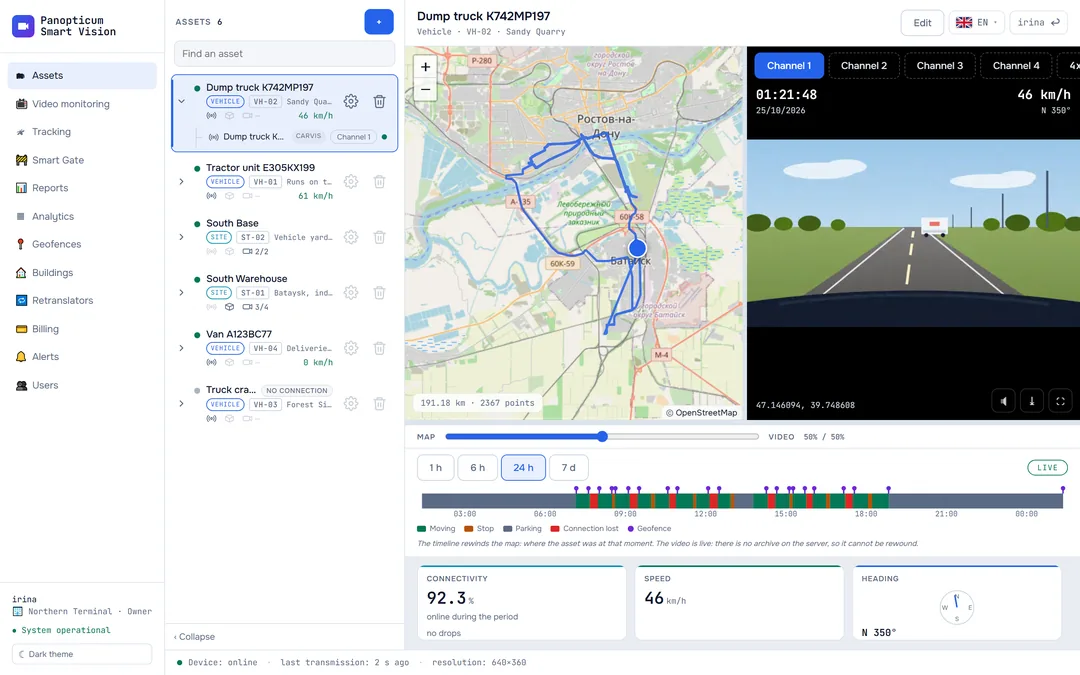
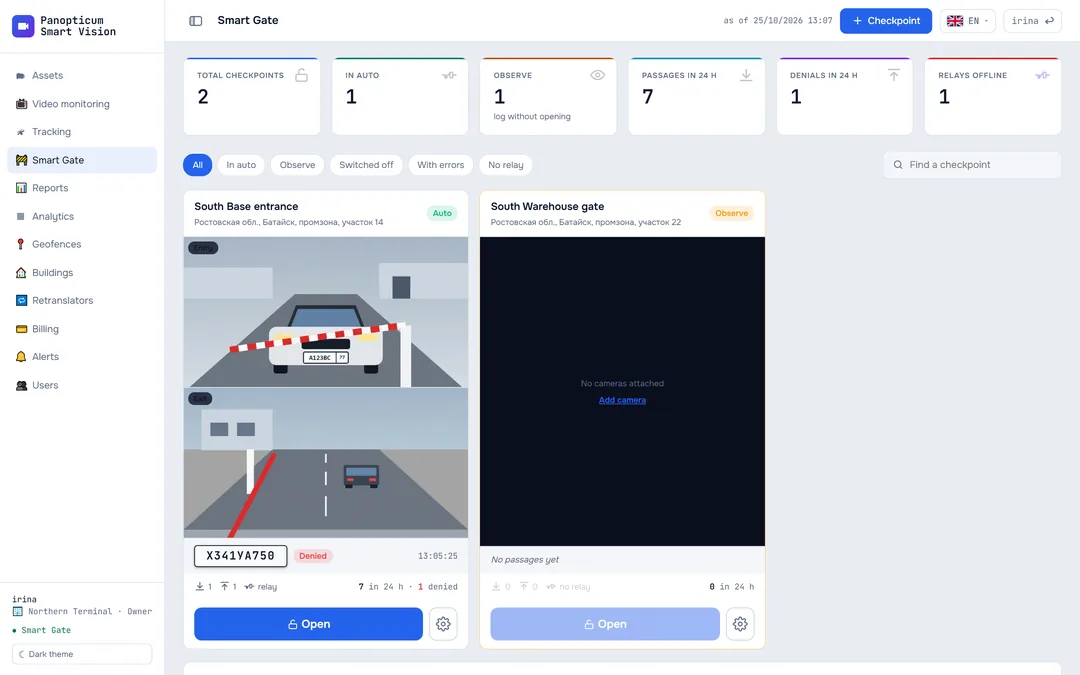
Analytics shows how reliably the cameras work: how many of them are online right now, what share of the day each one was available, when downtime happened and how fast the cameras answer. Cameras are also added and edited here.

- Total cameras, online, offline and SLA
- Period
- Downtime over time
- SLA by camera against the target
The tiles at the top
- Total cameras, Online and Offline: how many cameras the account has and how many of them answered at the last check.
- SLA 24h: the share of successful checks of all cameras over the last 24 hours.
- SLA met: how many cameras have a daily availability no lower than their own target.
- SLA window: the period availability is counted over, 24 hours.
How availability is calculated
The server checks every camera once every 30 seconds: it tries to reach its address and port. If the camera answered, the check is successful; if not, the check is recorded as downtime. If the camera has a health check address (the Health URL field), that is polled too. Availability is the share of successful checks over 24 hours, and downtime is the number of failed checks multiplied by 30 seconds.
The history of checks is kept for 30 days.
Charts
The period switch above the charts chooses the last 30 minutes, an hour, a day, a week or a month. The time captions follow the account’s time zone.
- Downtime: how many failed checks fell on each stretch of the period. A tall bar means the cameras were not answering at that time.
- Latency: the average response time of the cameras in milliseconds. Growing latency often warns of a connection problem earlier than downtime begins.
- SLA by camera: a bar per camera, the daily availability against its target (dashed line).
- Current status: how many cameras are online and how many are not.
Cameras
Below the charts there is the table of the account’s cameras: name, location, address, status and availability. The “+ Camera” button in the page header adds a new camera, the buttons in a row edit and delete. How to add a camera is explained in How to connect a camera.
Each camera has its own SLA target, 99.5% by default. If availability falls below the target or the camera is unavailable for a long time, an alert comes: the rules are set in the Alerts section.
At the very bottom of the page there are the latest downtime events: which camera did not answer and when.
In the apps
Web
Everything described above.
Windows
The Analytics section with the same tiles, charts and table of cameras.
Android
An availability summary and the list of cameras.
Telegram
The bot’s /status command sends a summary of cameras and devices that names only what needs attention.
If it did not work
- The camera is always red. The server cannot reach its address and port: the camera has no public address, or the port is not forwarded. Such sites need a trunk: The trunk and Panopticum OS.
- Availability is low, yet the camera seems to work. Look at the downtime chart for a week: short frequent gaps usually mean an unstable connection at the site.
See also
Found a mistake, or didn’t find an answer? Write to us on Telegram or send us a request, and we will reply and fix the article.