

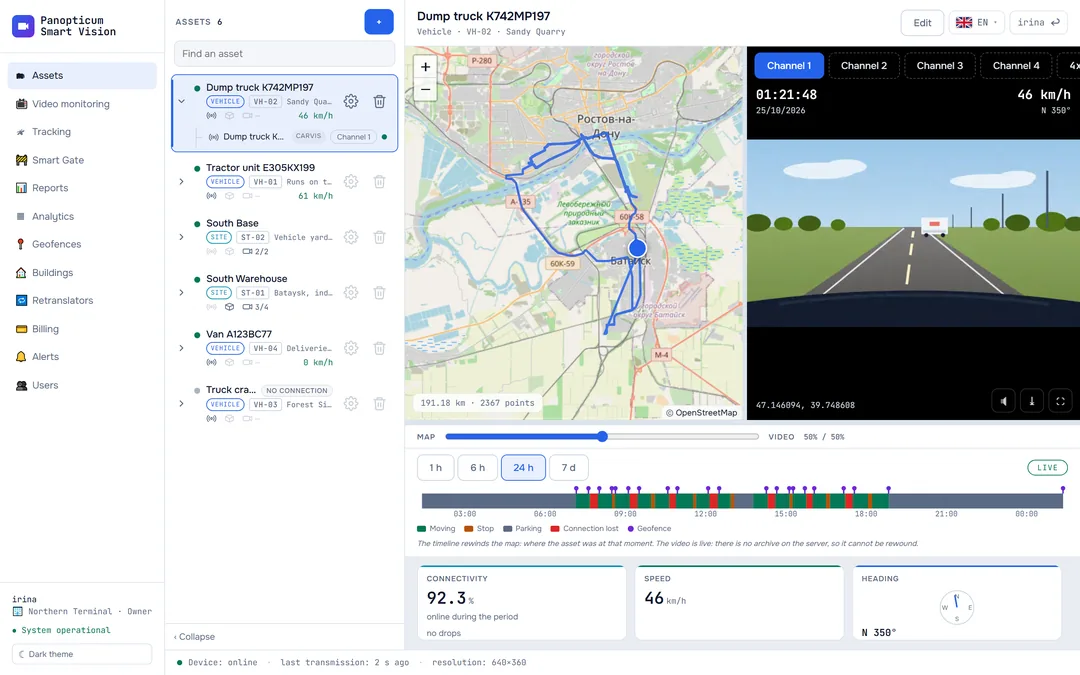
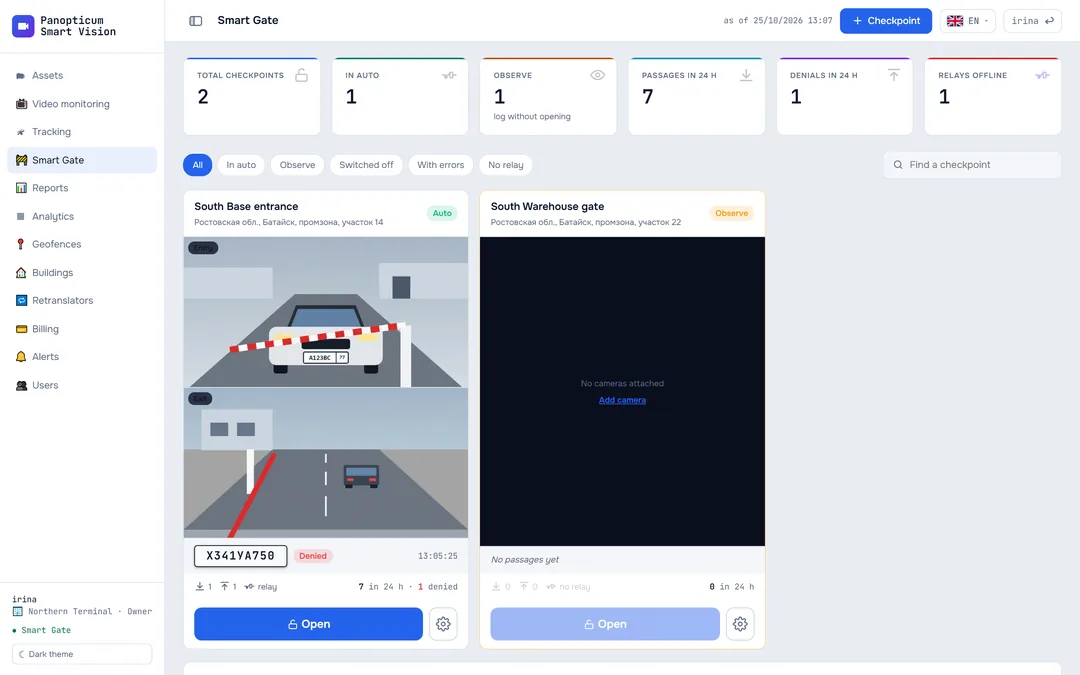
An asset in the Assets section brings together whatever belongs to one vehicle or site: the device with its track, the trunk and the cameras. Assets are added by a person: the system does not create a single one by itself, even when the equipment is already online.
A new asset
Press + above the asset list and fill in the form.

| Field | What it sets |
|---|---|
| Name | What the asset is called in the list, for example Shift bus or South Warehouse |
| Type | Vehicle, site or point; the type decides what the card shows |
| Code | A short number for the list, for example VH-06 |
| Second line in the list | A caption under the name: the driver, the route, the site |
| Tracking device and trunk | The asset’s equipment; can be left empty |
| Asset cameras | Tick the cameras to show in the card |
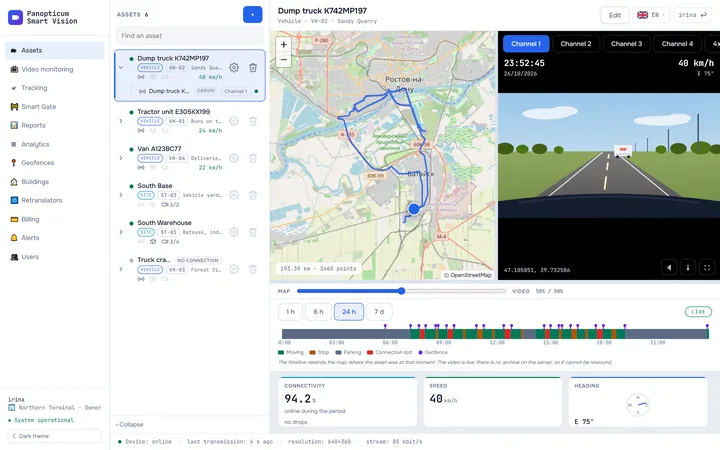
1Open Assets and press “+” above the list.
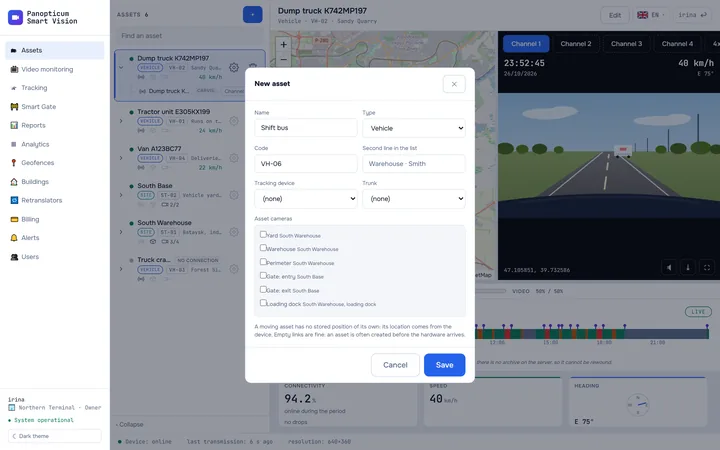
2Enter a name and a code, for example “Shift bus” and “VH-06”.
3Choose the type: Vehicle, Site or Point.
4Link a device and a trunk if you already have them. Empty links are fine.
5Tick the asset’s cameras.
6Press “Save”: the asset appears in the list.
Which type to choose
- Vehicle: a vehicle with a tracking device. Such an asset has no point of its own: its position comes from the device.
- Site: a warehouse, a depot or a construction site with a trunk and cameras. A site has a point on the map.
- Point: a single camera with no device and no trunk, also with its own point on the map.
A point on the map
For a site and a point the form has a “Location” block: start typing the address and pick a suggestion, press “Pick on the map” and click the section’s map, or use “My location”. While you pick, the form moves aside so as not to cover the map. An asset without a point is perfectly valid: it is just not shown on the map.
Linking equipment
- A device and a trunk can belong to only one asset: otherwise two vehicles would show the same track.
- Only equipment of your own account can be linked.
- Empty links are allowed: an asset can be added before its equipment arrives and linked later.
- An asset with a trunk has a “+ cameras” button in its equipment tree: it adds every camera the trunk sends to the asset.
Editing and deleting
The cog in a list row or the “Edit” button above the map opens the same form. The bin in the row deletes the asset; the equipment itself stays in the web app, only the link is removed. Assets can be added and edited by the account owner and operators; a viewer can only look at them.
In the apps
Web
Everything described above.
Windows
The same asset form; a site’s point is set by clicking the section’s map.
Android
The + button in Assets and the same form.
Telegram
In the Telegram panel, the asset form opens with the cog in a list row or with the + button.
If it did not work
- The device is not in the form’s list. It is already linked to another asset or has not been added in Tracking yet.
- The site is not on the map. It has no point: open the editing form and set one.
See also
Found a mistake, or didn’t find an answer? Write to us on Telegram or send us a request, and we will reply and fix the article.