

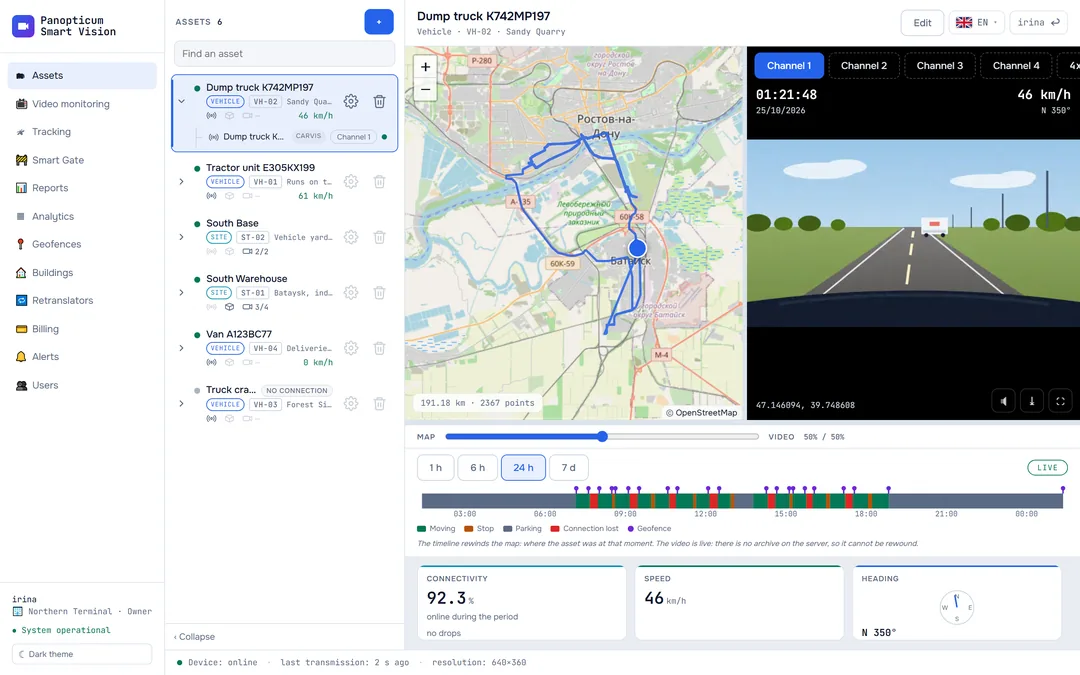
Video travels from the camera over the site’s connection to our server and from there to you. Any part of this path can break, so it is easiest to check in order: is the camera alive, does its stream open, and is the connection wide enough.
What the tile tells you
The caption in place of the picture tells you at once which step to start with.
| What you see | Where to look for the cause |
|---|---|
| “Camera offline”, and in Analytics the camera is Offline | The camera does not answer the server: power, the internet at the site, port forwarding. Start with step 1 |
| No Signal, and in Analytics the camera is Online | The camera can be reached, but the stream does not open: the address, username, password or stream path. Step 2 |
| “Connecting” or “Waiting for stream” for a long time | Rare key frames in the camera or a narrow connection. Steps 3 and 4 |
| The video plays and freezes | The site’s connection is too slow for this stream. Step 4 |
| “Press ▶” | The browser did not allow the video to start by itself; this happens in a phone’s power saving mode. Tap the video or allow the site to autoplay |
| All the cameras of one site are gone at once | The site has lost its internet or power; for cameras behind a trunk, it is usually the trunk itself that is offline |

- Grid size
- Camera tile: name, location, LIVE
- PTZ control (pan-tilt cameras only)
- Camera with no signal
- Vehicle DVRs: video on request
There is no need to reload anything: the player retries by itself after 5, 10, 20 and 40 seconds, and then once a minute. As soon as the camera works again, the tile comes back to life by itself. All the tile captions are explained in Video monitoring.
A step-by-step check
- Is the camera online? Open Analytics: the camera’s state is Online or Offline. The server checks every camera every 30 seconds by reaching its address and port. If it is Offline, check the camera’s power, the internet at the site, that the port is forwarded on the router and that the address in the web app is the external one.
- Does the stream open from outside? Open the camera’s RTSP address in the VLC player on a computer outside the site’s network, for example over mobile internet. If it does not open, there is a mistake in the username, password or stream path; look the path up in the camera’s manual. If it opens only from inside the site’s network, there is no access from outside, and you need a trunk (The trunk and Panopticum OS).
- The codec and the key frame. In the camera’s settings, choose H.264 compression: not every browser shows H.265. Set the key frame interval to 1 or 2 seconds: playback starts from a key frame, so with an interval of 6 seconds the first picture waits just as long, and on a weak connection the video breaks up more often.
- Is the connection wide enough? If the video starts and then freezes, the stream is heavier than the site’s connection can carry. Take the camera’s substream instead of the main stream, or lower the resolution and bitrate in the camera. For mobile internet at the site, a sensible starting point is 1280×720, 10 to 15 frames per second and a bitrate of 768 to 1024 kbit/s.
Cameras behind a trunk
The cameras of a site without a public IP are shown through a trunk: it picks up the video on the site’s network and sends it to the server itself. If all the cameras of such a site are gone, first check the trunk’s power and internet. Trunks are set up and watched by our support: send us the name of the site, and we will tell you whether the box is online and whether it can see the cameras.
DVR video
Video from a Carvis DVR travels over the vehicle’s mobile connection and is started by a command to the DVR, so it has messages of its own. They appear under the video window.
| Message | What it means |
|---|---|
| “Starting channel”, then Received … KB, building the first segment | All is going as it should. The first picture appears in 10 or 15 seconds, when the DVR sends a key frame |
| “device is offline (no TCP session)” | The DVR is not online right now, so the video command has nowhere to go. The video will appear when the vehicle comes online |
| “The DVR sends no video. Is a camera connected to this channel?” | The DVR accepted the command but has not sent a single byte. Most often there is no camera on this channel: try another channel |
| The stream stopped at … KB | The vehicle’s connection is weak and keeps dropping. In the bot’s /status summary, such a device is listed among those whose connection keeps dropping |
| “Data is arriving, but no segment has been built: the device sends key frames too rarely” | The DVR sends key frames too rarely. Shorten the key frame interval in the DVR’s settings |
Up to four DVRs can be on at once on the video wall. More about channels and the lighter stream in DVR video.
If video is missing in one app only
Web
Update your browser to a recent version. If the wall has many cameras and the computer or phone is weak, choose a smaller grid: each tile is a separate stream.
Windows
The app takes an ordinary camera directly from the camera, not through the server. If the browser shows the video and the app does not, the computer cannot see the camera: check the network, the firewall and the VPN. Cameras behind a trunk come through the server, as in the browser.
Android
Video is hardest on mobile internet: keep one or two tiles in a row and watch a camera full screen.
Telegram
In the panel, only the tiles visible on the screen play. If video does not play on any camera, open the same camera in the web app: this shows whether the problem is in the panel or in the camera.
If this did not help
Write to us via the Contacts page or on Telegram. To sort it out faster, tell us:
- the camera’s name and the number shown on its tile;
- what the tile says and since when;
- whether the stream opens in VLC from outside the site’s network.
See also
Found a mistake, or didn’t find an answer? Write to us on Telegram or send us a request, and we will reply and fix the article.