

Section “Connecting equipment”
All documentation sectionsSmart Gate recognises number plates at the entry and exit and opens the barrier or gate for vehicles on the allow list. A checkpoint is assembled from what is already in the web app: its cameras are ordinary cameras of your account, and the frames for recognition are taken from our server, where the video arrives anyway. The checkpoint opens no separate connection to the camera.
A new checkpoint
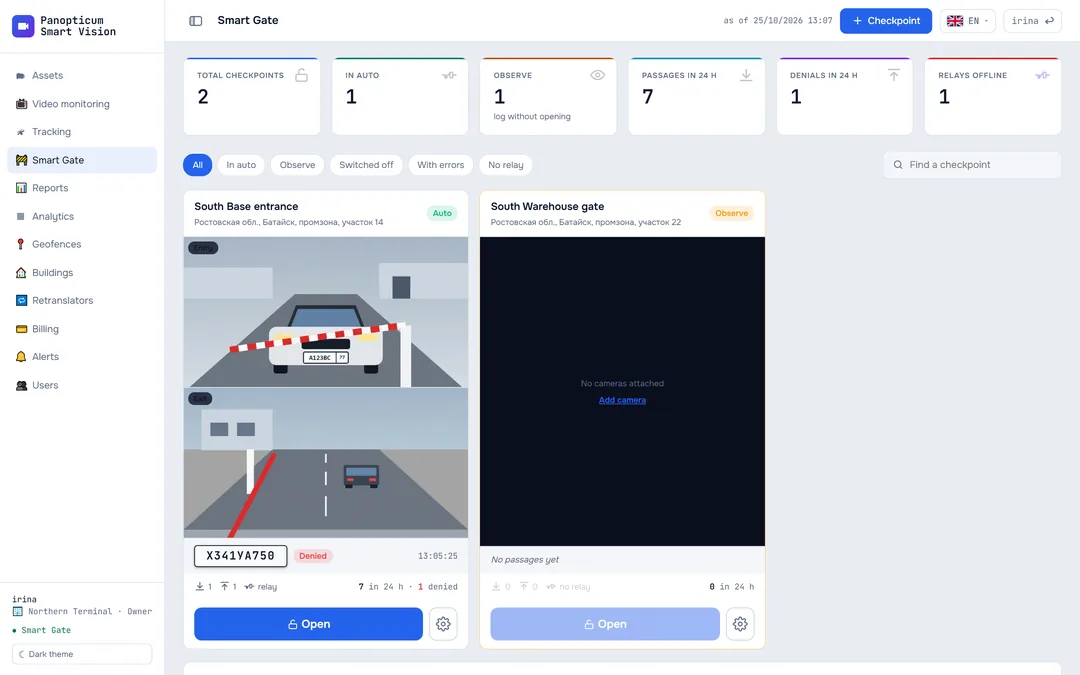
In the Smart Gate section press “+ Checkpoint” at the top right, and give the checkpoint a name and an address. The checkpoint opens in its own card.

- Summary: checkpoints, modes, passages and denials in 24 h
- Checkpoint: entry and exit camera frames, mode
- Last passage: plate, decision, time
- Open manually and checkpoint settings
Checkpoint cameras
First add the entry camera to the web app like any other (How to connect a camera). Then open the Cameras tab in the checkpoint card, press “+ Camera”, choose the camera and set its direction: entry or exit.

For the plate to be read reliably:
- the plate in the frame must be at least 120 pixels wide, otherwise the three-digit region code is the first thing to be lost;
- set the keyframe interval in the camera to 1 or 2 seconds: recognition then gets a fresh frame without delay;
- at night the plate needs lighting; without it, it cannot be read.
The barrier relay
In the Relays tab, add the relay that opens the barrier or gate. Dingtian network relays are supported, as is any HTTP relay with its own address, and Modbus TCP. The “Dry run” option opens nothing and only writes to the log: it is handy for checking a checkpoint without a barrier.

- The relay must be reachable from our server over the internet, usually through a forwarded port. An address on an internal network (192.168.x.x, 10.x.x.x) will not do: the server has no route there.
- On Dingtian boards, enter the channel number as it is labelled on the board, starting from one.
- The relay’s start button clicks it once and shows an error if the relay did not reply. An alert about a relay failure always goes out and cannot be switched off: it means a broken gate.
Modes and settings
The mode and the checkpoint’s other settings are in the Settings tab.

- Mode: Off, Observe or Auto
- Recognition confidence threshold
- Free exit
- Address for an ANPR camera
| Mode | What it does |
|---|---|
| Off | No recognition and no log |
| Observe | Plates go into the log with the decision “would have opened” or “would not have opened”; the barrier is not touched |
| Auto | Opens for vehicles on the allow list |
- Debounce: for how many seconds after recognition the same plate in the same direction is not processed again. Otherwise a vehicle that lingers in the frame would open the barrier over and over and multiply the rows of the log.
- Confidence threshold: a plate read less reliably than the threshold does not open. For example, 0.6 means 60 per cent.
- Free exit: open for any vehicle on exit, without a list.
- Allow one recognition error: only similar characters may be confused (0 and O, 8 and B), or one extra or missing character. Two different real plates are never merged, and this matching never applies to the block list.
- Alert on block list plates and Alert on unknown plates: messages go to the channels of the Alerts section.
If the checkpoint has a schedule (support sets it up), outside the schedule window Auto behaves like Observe, and the checkpoint header shows a “by schedule” note.
How the checkpoint decides
The checks run in order, and the first one that applies decides:
- the plate was read unreliably: refusal, without recording the vehicle as an offender;
- the plate is on the block list: refusal and an alert, even if it is on the allow list too;
- the checkpoint is in Observe mode: the entry “would have opened” or “would not have opened”;
- free exit and the vehicle is leaving: open;
- a valid pass on the allow list: open;
- otherwise refusal: “Plate is not on the list”.
Vehicle approaching
- Confidence. A plate read unreliably does not open the gate and does not mark the vehicle as an offender.
- The block list is checked before the allow list and overrides it. An alert goes out about such a vehicle.
- Checkpoint mode. In Observe mode the decision goes into the log marked “would have opened”, and the barrier is not touched.
- Free exit opens for any vehicle that is leaving.
- The allow list, taking the pass’s dates, days and hours into account. A window from 22:00 to 06:00 is a night shift across midnight, not an empty interval.
- Decision: the relay lifts the barrier or the gate stays closed; the passage goes into the log with a frame.
Your own recognition camera
If the gate already has a Hikvision or Dahua camera that recognises plates itself, the section works straight away and without sending video. In the checkpoint settings, in the “External ANPR camera” block, copy the address and give it to the camera. The camera sends the plate, direction, confidence and, if you wish, a frame there. Such plates go through the same checks and into the same log.
What next
How to watch checkpoints and open by hand is covered in Running a checkpoint, and how to keep the lists in Passes.
If something went wrong
- The log is empty. The checkpoint is off or has no camera linked; check the Settings and Cameras tabs.
- The plate is read with errors or without the region. The plate in the frame is too small: zoom the camera in or fit a longer lens.
- The log says “Relay error”. The checkpoint decided to open, but the relay did not reply. The Relays tab shows the last error; check the address and port, and that the relay is reachable from the internet.
- Step-by-step troubleshooting in The checkpoint does not recognise a plate.
See also
Found a mistake, or didn’t find an answer? Write to us on Telegram or send us a request, and we will reply and fix the article.