

Section “Getting started”
All documentation sectionsThis article takes you from sign-up to your first camera on the video wall and your first vehicle on the map. Each step leads to a detailed article if you need more.
Sign-up
Open the sign-up page, choose a username and a password and enter your company name. Straight after sign-up you have your own account: you are its owner, and other customers’ equipment is not visible to you.
Signing in
Sign in on the sign-in page with your username and password. The same username works in the Windows and Android apps and in the Telegram panel.

- Username given to you by the account owner
- Password
- Sign-in button
First steps
- Connect cameras. A camera with a public address is added with a single RTSP line; cameras behind NAT and mobile internet connect through a trunk. See How to connect a camera and The trunk and Panopticum OS.
- Connect the devices in your vehicles. Set our server address and your protocol’s port in the device, and add it in Tracking with the “+ Device” button by IMEI or terminal number. See How to connect a device.
- Add assets. An asset brings a vehicle or a site together as a whole: device, trunk and cameras. See How to add an asset.
- Invite employees. Each one gets their own username and role, see Users and roles.
- Connect alerts. A Telegram chat is linked via a link or a QR code, see The Telegram bot and Mini App.
The main screen
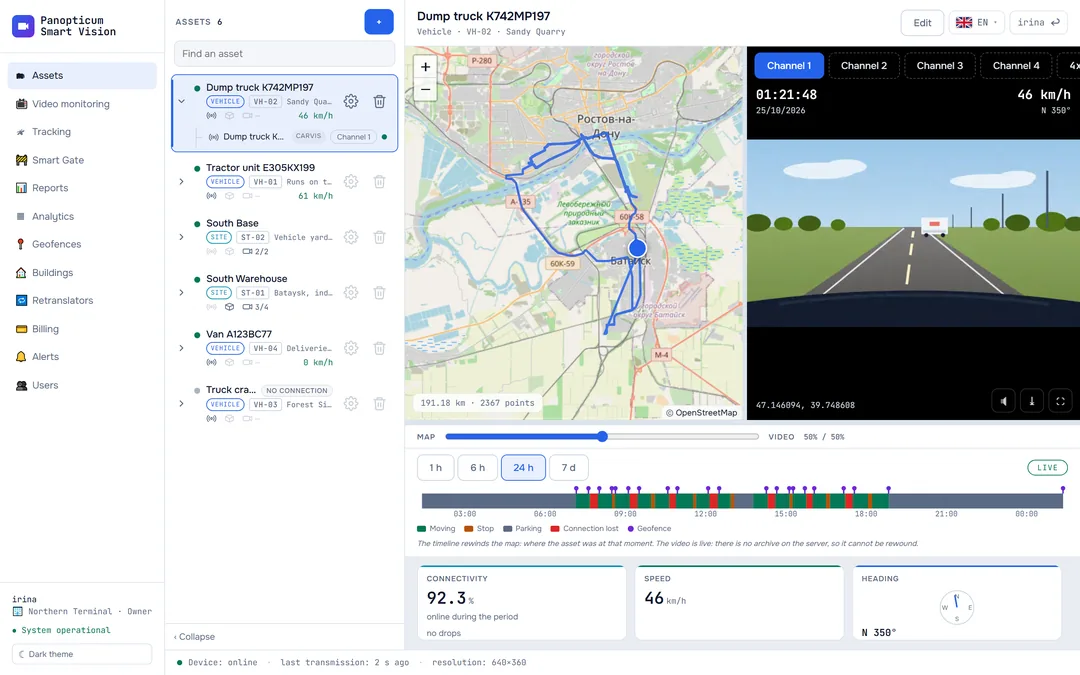
After signing in, the Assets section opens: the list of vehicles and sites, the map, video, the timeline and the readings of the selected asset.

- Asset list: vehicles and sites
- Map: where the asset is now and where it went
- Video sources: DVR channels
- Timeline: driving, parking, connection drops
- Instruments: connectivity, speed, heading
- Edit the asset
The other sections are in the menu on the left. How the web app is laid out, how to hide the menu and change the theme is covered in How the web app works.
Users and roles
The owner gives employees their own usernames in the Users section. There are three roles: owner (everything, plus employees and payment), operator (adds and sets up equipment) and viewer (only watches). Details in Users and roles.
Alerts
In the Alerts section press “Connect Telegram” and follow the link or scan the QR code with your phone: the chat with the @PanopticumAlertBot bot is linked to your account. You can also add email there, turn on quiet hours and limit the number of messages per hour.
Apps
Besides the browser, you can work in the Windows and Android apps and in the Telegram panel. The Windows and Android apps and the Telegram panel are in English or Russian. On an iPhone, use the browser and Telegram. Which to choose is covered in Which app to choose.
Plan and payment
The Billing section shows your plan, limits and invoices. A plan limits only the number of cameras and devices; every feature is in every plan. When the trial ends, choose a plan or write to us and we will find the right one.
See also
Found a mistake, or didn’t find an answer? Write to us on Telegram or send us a request, and we will reply and fix the article.