

Section “Getting started”
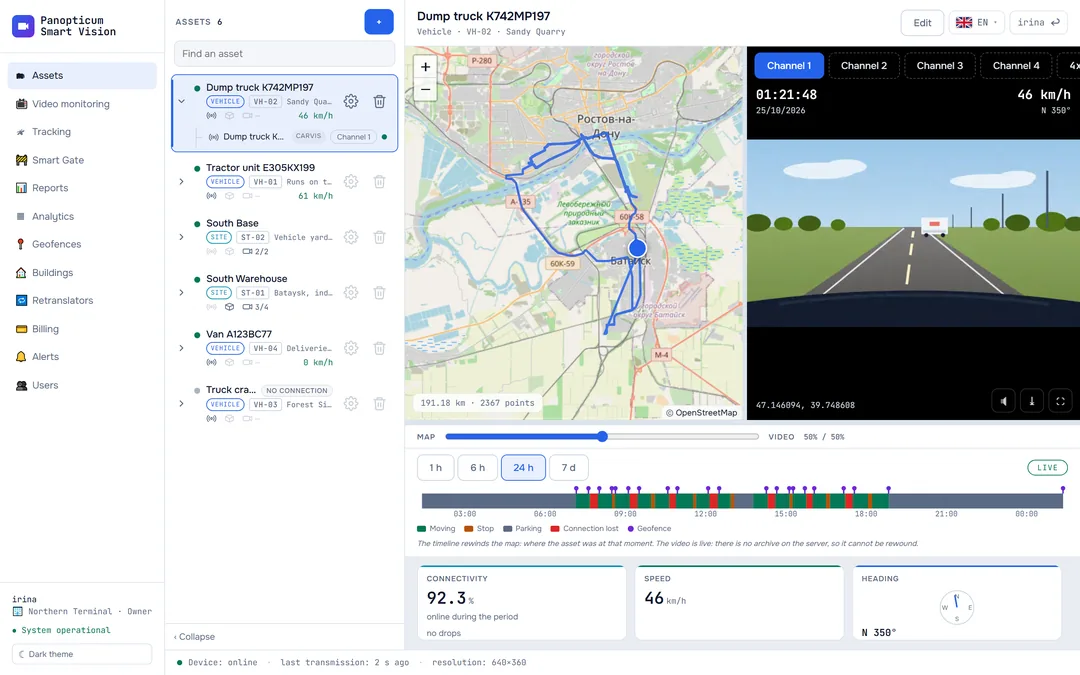
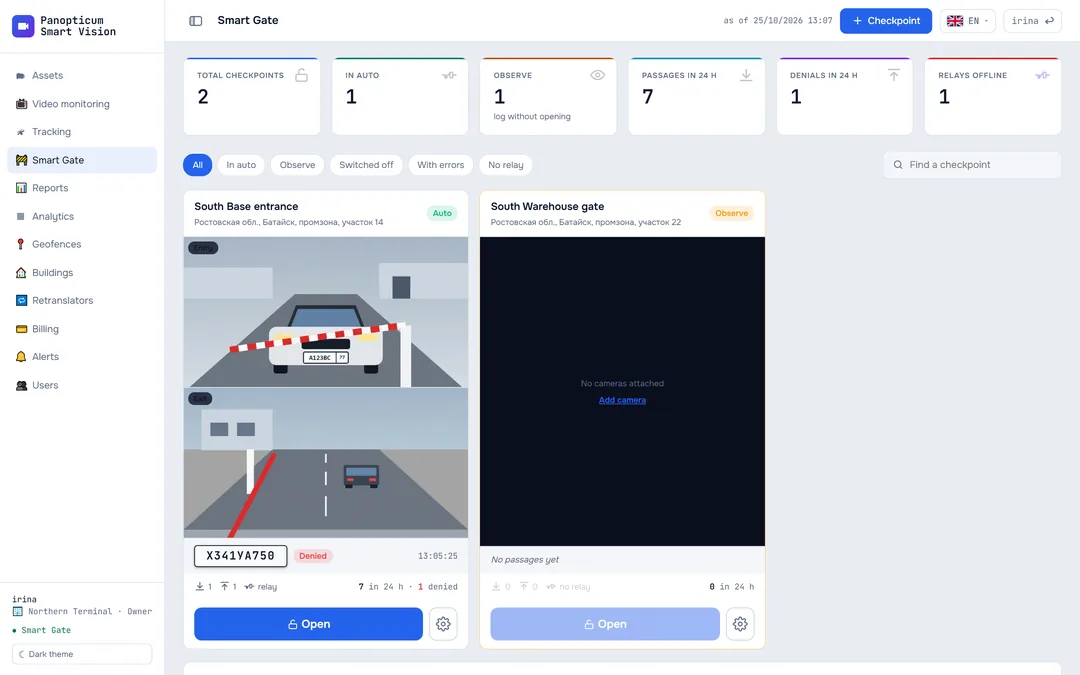
All documentation sectionsThe web app opens in any modern browser, on a computer and on a phone. The section menu is on the left and the section’s work area on the right. After signing in, the Assets section opens.
Section menu

- Current section
- Who is signed in and to which account
- Light or dark theme
The menu items are in order of how often they are used:
- Assets: a vehicle or a site as a whole;
- Video monitoring: the wall of cameras and DVRs;
- Tracking: devices on the map;
- Smart Gate: plate recognition checkpoints;
- Reports: tables and charts from device data;
- Analytics: camera availability and downtime;
- Geofences, Buildings, Retranslators;
- Billing: plan and invoices;
- Alerts: Telegram, email and the log of what was sent;
- Users: for the account owner only.
At the bottom of the menu you can see who is signed in, to which account and with which role. On the Tracking page, owners and operators also have an “Add DVR” item in the menu, and on the Analytics page an “Add camera” item.
An exclamation mark next to Billing means there is an overdue invoice or access is suspended; more in Plan and payment.
How to hide the menu
The button with a rectangle in the top left corner of the work area hides the menu, and the section gets the full width of the screen: handy for the map and the video wall. The same button brings the menu back. The choice is remembered in the browser and applies on every page.
On a phone the button shows three lines and opens the menu over the page; tap outside the menu to close it.
Light and dark theme
The button at the bottom of the menu switches the theme. The dark one suits a control room with dimmed lights, the light one an office. The choice is remembered for this browser.

Video is always shown on a dark background, in both themes.
Signing out
Your username with an arrow is in the top right corner of every page. Press it to sign out of the web app. On a shared computer always sign out: the sign-in is kept in the browser, and the next person at that computer would find themselves in your account.
The flag next to it chooses the web app’s language: English or Russian. The choice is remembered in the browser.
From a phone
In a phone browser the web app rearranges itself into one column: the list on top, the card below, and the map and video switch with tabs.

For everyday work from a phone, the Android app or the Telegram panel is more convenient: see Which app to choose.
If something went wrong
- A section is missing from the menu. Users is visible only to the account owner. The other sections are visible to everyone linked to the account.
- The bottom of the menu says “no account assigned”. Your username is not yet linked to a company; write to the account owner or to us.
- The page says access is suspended. Open Billing: it shows which invoice is unpaid.
See also
Found a mistake, or didn’t find an answer? Write to us on Telegram or send us a request, and we will reply and fix the article.