

Section “Reference”
All documentation sectionsColours mean the same in every section and app. Green: working or online. Amber: needs attention, but is not a failure. Red: a failure or a refusal. Grey: off, no data or only recorded. The full list by section is below. The dark theme uses other shades, but the meaning is the same.
Cameras and video
| State | Where you see it | What it means |
|---|---|---|
| Online | Analytics | The camera answered the last check. The server checks every camera every 30 seconds |
| Offline | Analytics | The camera did not answer: its address and port cannot be reached |
| 99% and above | Analytics, the SLA 24h tile | The availability of all cameras over the last 24 hours is fine |
| 95 to 99% | Analytics, the SLA 24h tile | Cameras were unavailable for a noticeable time: look at the downtime chart |
| below 95% | Analytics, the SLA 24h tile | Cameras are unavailable for long stretches |
| Analytics, the camera table | The camera’s availability over the last 24 hours is not below its target; a red bar means below the target | |
| “Connecting” | Video tile | The player is requesting the stream |
| “Waiting for stream” | Video tile | The server has answered, but there is no first frame yet |
| No Signal | Video tile | The stream has been lost or did not open; the player retries by itself |
| “Camera offline” | Video tile | The camera does not answer the check; the retries go on too |
| “Press ▶” | Video tile | The browser did not allow the video to start by itself |
Tile captions are written on a black bar over the test card: until there is a picture, the test card always stands in place of the video. How to find the cause is described in Video does not play or freezes.
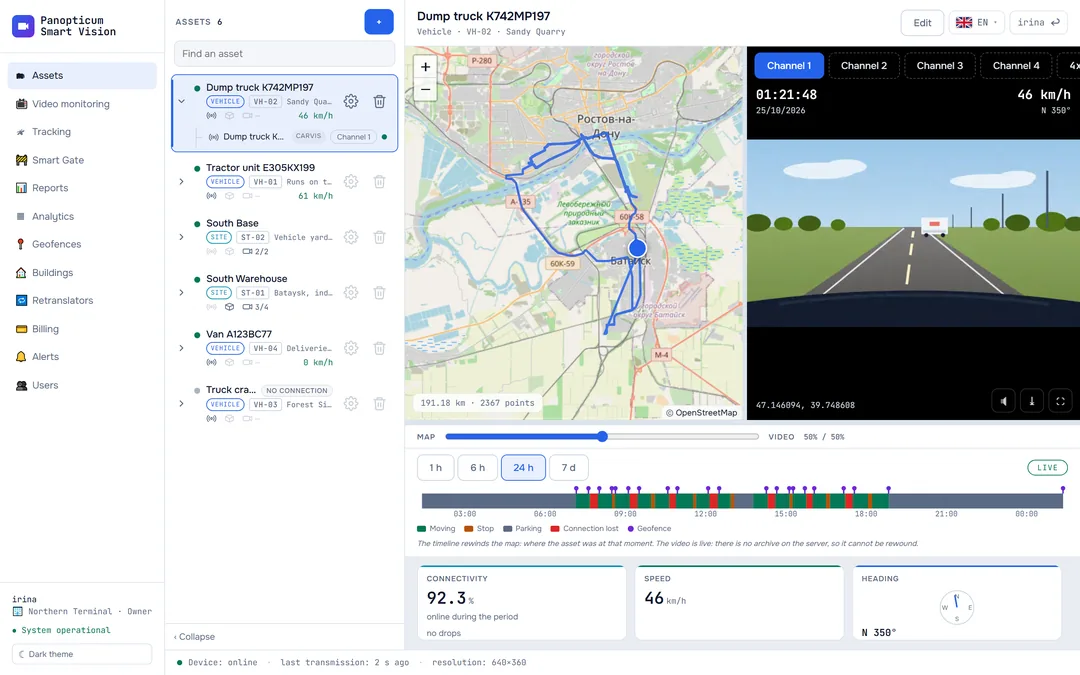
Assets

- Equipment counter: device, trunk, cameras online
- Equipment tree
- Edit and delete the asset
- Search by name
| State | What it means |
|---|---|
| The dot by the name | The asset is online: its device, trunk or at least one camera is online. A grey dot: nothing is online |
| alarm | The device reports an alarm. This badge outranks the others |
| catching up | The device is uploading its stored history; the position on the map is from the past for now |
| silent 3 h | No connection for more than an hour; after a day the count goes in days |
| no connection | The server has not received a single packet from the device: usually the device has never been online yet |
An asset without equipment has no badge: it has nothing to lose the connection with. A row always has one badge, the most important one.
The timeline under the map colours its stretches like this:
| Colour | What it means |
|---|---|
| The vehicle is driving faster than 3 km/h | |
| Standing with the ignition on | |
| Standing with the ignition off | |
| The device is online, but there are no points: for example, without a satellite fix | |
| The device was not online | |
| Alarm, Geofence, Event | Marks above the bar: device alarms, geofence events and other events |
Tracking and connection history
| State | What it means |
|---|---|
| The dot by a device | The device is online: it has sent something in the last 3 minutes |
| 5 min ago, “no data” | How long it has been since the last packet; “no data” means there have been no packets at all |
| ⏳ uploading history | The device is sending what it has stored and is behind by the time shown |
| “FIX” and “NO FIX” | In the telemetry: whether the device has a satellite fix. Without it, points are not recorded |

- Period: day, week, month
- A band per device: green online, light offline
- Legend
The connectivity panel draws a bar for each device:
| Colour | What it means |
|---|---|
| The device was online; the richer the colour, the larger the share of the time | |
| There was no connection | |
| The device was uploading its stored history | |
| The time before the server started recording connectivity: an estimate from the track points | |
| A gap in the recording caused by our server, not by the device |
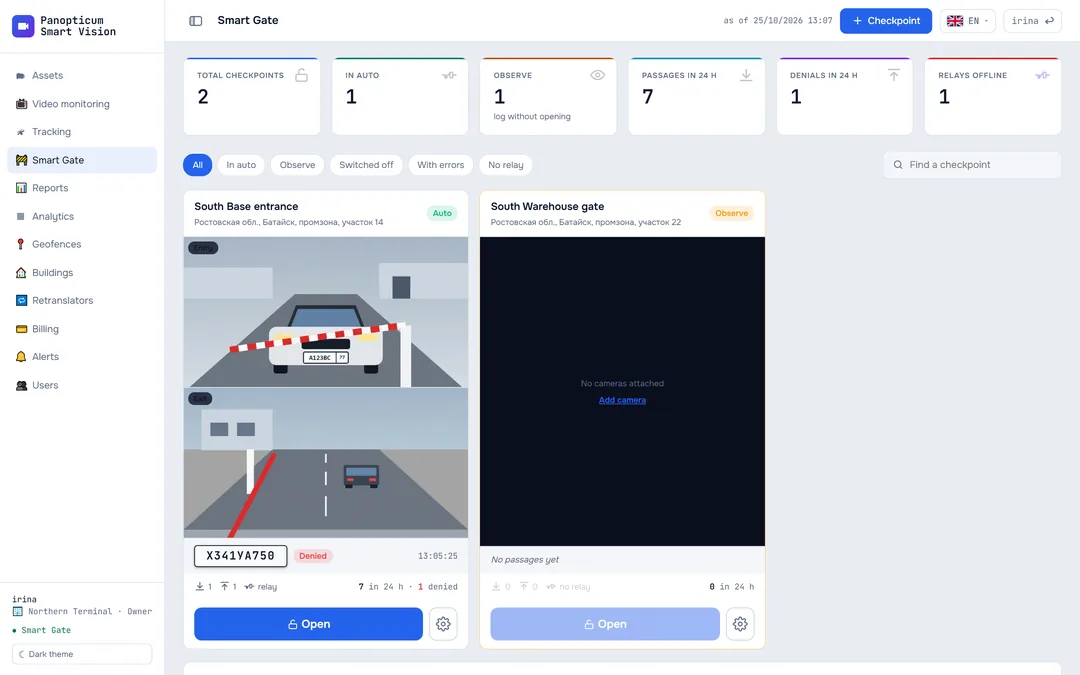
Smart Gate
| State | What it means |
|---|---|
| Opened, Opened manually | The barrier was opened by a pass, by free exit or with the “Open” button |
| Denied, Block list | The vehicle was not let in; the reason is in the next column of the log |
| Relay error | The checkpoint decided to open, but the relay did not answer |
| Observe | The decision was only recorded: “would have opened” or “would not have opened” |
| The “Off”, “Observe” and “Auto” modes | What the checkpoint does with plates; “by schedule” means that the automatic mode works during the set hours |
| Relay: “relay”, “error”, “no relay” | In the checkpoint tile: the relay is fine, did not answer the last command or is not set up |
| waiting for a frame on a grey field | The camera snapshot is still on its way: in the first seconds this is normal |
| no frame on the test card | The camera does not give a snapshot |
| “No camera on entry”, “No camera on exit” | A caption in the empty half of the tile: the checkpoint lacks a camera for this direction |
Retranslators
| State | What it means |
|---|---|
| Running | The receiver confirms what it receives |
| Connecting | The connection to the receiver is being set up |
| Waiting | The channel is on, but there is nothing to send: it has no devices |
| Error | The receiver does not answer or has refused; the details are in the channel’s card |
| Suspended | The account’s access is suspended for non-payment, and sending has stopped |
| Off | The channel has been turned off with its switch |
Billing and alerts
| State | What it means |
|---|---|
| Active | The service is active: everything is paid, or the due date has not passed yet |
| Trial | A trial period: no invoices are issued |
| Grace period | The due date has passed, the grace period is running, and the web app works |
| Suspended | The web app and the apps are closed until payment; data keeps being collected |
| Issued, Paid, Cancelled | The state of an invoice in the “Invoices” table |
| sent, failed | In the alert log: the message was delivered or was not delivered |
In the apps
Web
Everything described above. The theme is light or dark; the switch is at the bottom of the left menu.
Windows
The same states and colours. The app is always in the dark theme.
Android
The same states and colours; the Auto theme follows the phone’s theme.
Telegram
The same states and colours; the Auto theme follows Telegram’s theme.
See also
Found a mistake, or didn’t find an answer? Write to us on Telegram or send us a request, and we will reply and fix the article.